# ChannelMobile Docs

Find everything you need to get started, from using the frontend to integrating with the API.

## What is Channel Mobile?

Learn what Channel Mobile is and get an overview of the products and services we provide.

{% content-ref url="/pages/1jksZhf0MUhhTPmfiQCK" %}
[Products](/our-products/products)
{% endcontent-ref %}

## **Looking for help with the Channel360 frontend?**

Our frontend guides walk you through using the platform.

{% content-ref url="/pages/Sls4LXwo9liyDxKh05NC" %}
[Channel360 Guide](/channel360-guide)
{% endcontent-ref %}

## **Developer Documentation**

Guides and references for using the Channel360 API.

{% content-ref url="/pages/5kv3NnHA6ojggeH4it4d" %}
[Get started](/api-usage/get-started)
{% endcontent-ref %}


# Channel360 Guide

Channel360 is our broadcasting platform that gives you the ability to send messages to your audience.

This document provides a guide for using the Channel360 platform to manage and send your campaigns. Once your templates are approved, you'll be able to send unlimited campaigns without restrictions

Get started with viewing the dashboard on the next page.

Have a look at our onboarding presentation for detailed information on how to get started with Channel360:

{% file src="/files/TtIJoqrNLJEUrHgjyARd" %}


# Dashboard

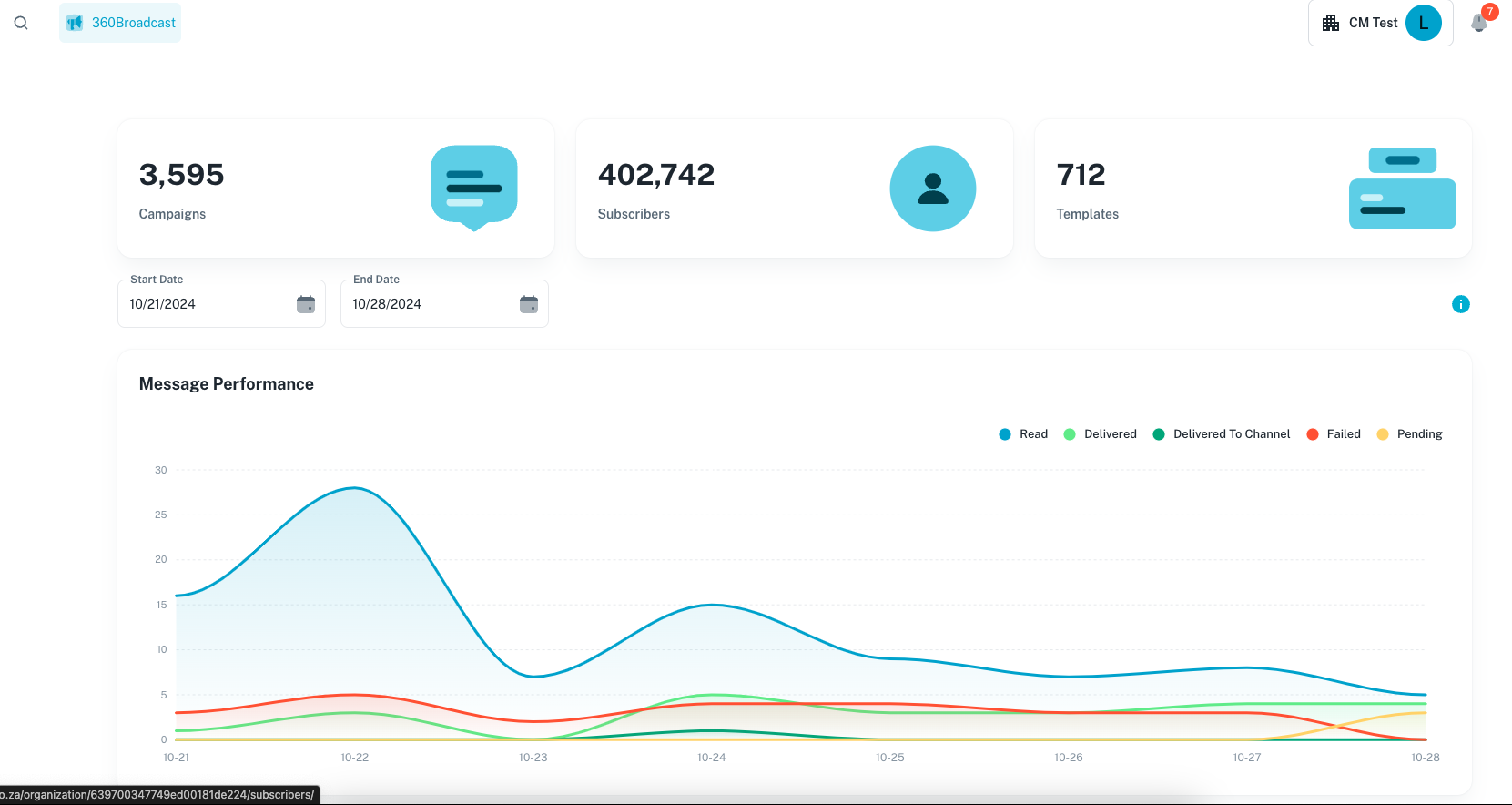
The Dashboard offers comprehensive analysis and reporting for all messages sent through the platform

<figure><img src="https://685637647-files.gitbook.io/~/files/v0/b/gitbook-x-prod.appspot.com/o/spaces%2FP4Um8QSERfruL8OrCzQm%2Fuploads%2Fgit-blob-e94db956155f80efd8310bb271dd65028329cb4c%2FScreenshot%202024-10-28%20at%2009.25.42.png?alt=media" alt=""><figcaption></figcaption></figure>

This chart shows you an overall performance view on the different metrics of the campaigns sent as a organisation.

You can select custom start and end dates to quickly analyze each campaign sent, along with its various performance metrics.

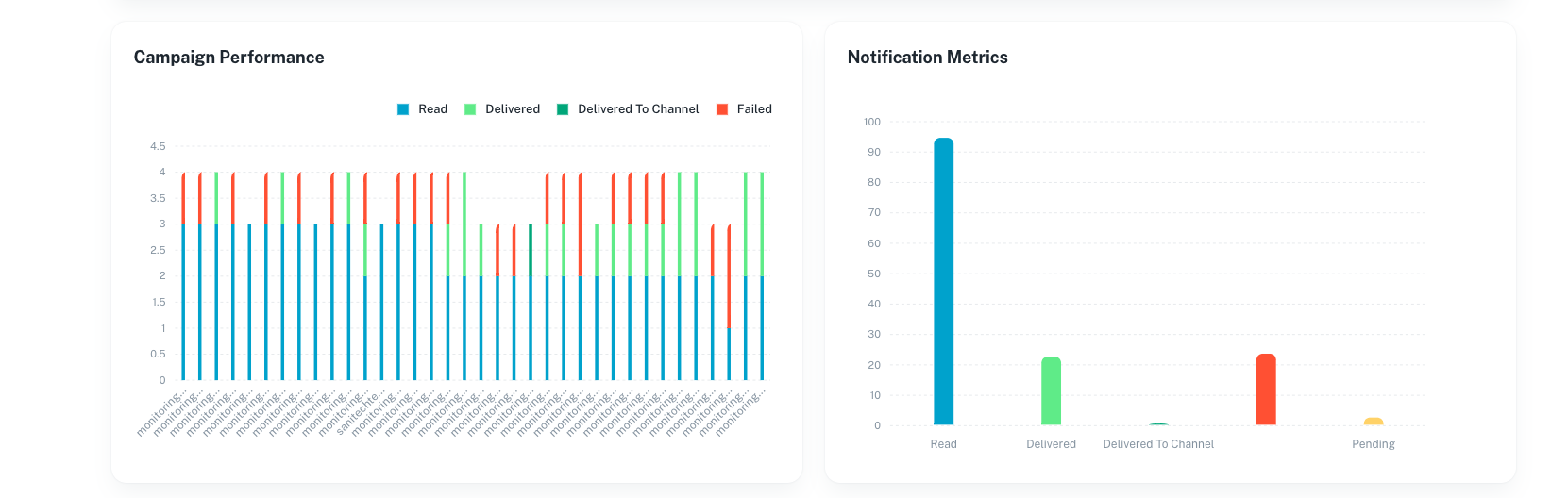
<figure><img src="https://685637647-files.gitbook.io/~/files/v0/b/gitbook-x-prod.appspot.com/o/spaces%2FP4Um8QSERfruL8OrCzQm%2Fuploads%2Fgit-blob-99e2b2adc138cf688a2ae5d1b041bb4fc98ba282%2FScreenshot%202024-10-28%20at%2010.56.55.png?alt=media" alt=""><figcaption></figcaption></figure>

Below are the campaign/message performance categories:

* **Read:** This indicates that the message was successfully sent and read by the recipient which in simpler terms is **2 blue ticks**.
* **Delivered:** Represents that the message was successfully delivered to the recipient’s phone, but they haven’t opened it yet, which in simpler terms is **2 grey ticks.**
* **Delivered To Channel:** This means that the message has been sent out of our platform and has reached Whatsapp but it still needs to reach the recipient.
* **Failed:** This means that there's been an issue and the message hasn't reached the recipient.
* **Pending:** This means that the message is still waiting/ in the process to being delivered and hasn't reach the recipient yet.

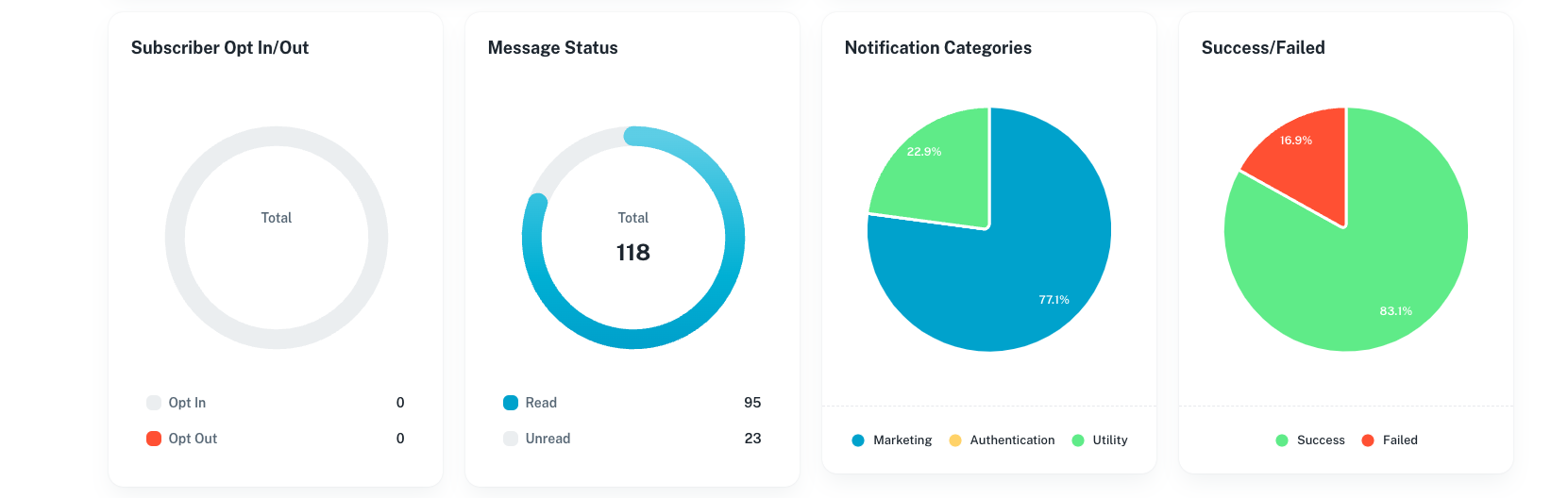
<figure><img src="https://685637647-files.gitbook.io/~/files/v0/b/gitbook-x-prod.appspot.com/o/spaces%2FP4Um8QSERfruL8OrCzQm%2Fuploads%2Fgit-blob-35ef9b6fca5bd9f5b2bfc576d7f4112218926828%2FScreenshot%202024-10-28%20at%2010.57.16.png?alt=media" alt=""><figcaption></figcaption></figure>

These metrics include:

* **Success/Failed** to track how well your campaigns performed.
* **Message status** that show which messages are read, unread, delivered, or undelivered.
* **Opted-out subscribers** show to total subscribers that have opted in or have opted out of receiving messages.
* **Notifications by category** to see notifications grouped by type for easy analysis.

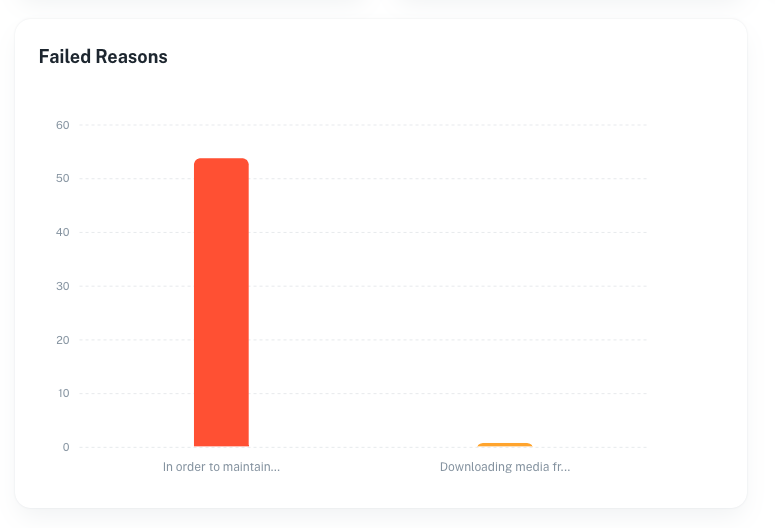
<figure><img src="https://685637647-files.gitbook.io/~/files/v0/b/gitbook-x-prod.appspot.com/o/spaces%2FP4Um8QSERfruL8OrCzQm%2Fuploads%2Fgit-blob-530c36c3dcd5a946fc5c3be037c58e0bfda87570%2FScreenshot%202024-10-28%20at%2010.58.23.png?alt=media" alt=""><figcaption></figcaption></figure>

This chart shows you the possible reasons as to why a campaign failed.


# Webhooks

In Channel360, webhooks are used to send event data (such as message delivery update, failures, reads etc.) to your system.

### Creating webhooks

1. Sign in to Channel360.
2. Navigate to **Settings.**
3. Select the **Webhooks** tab.

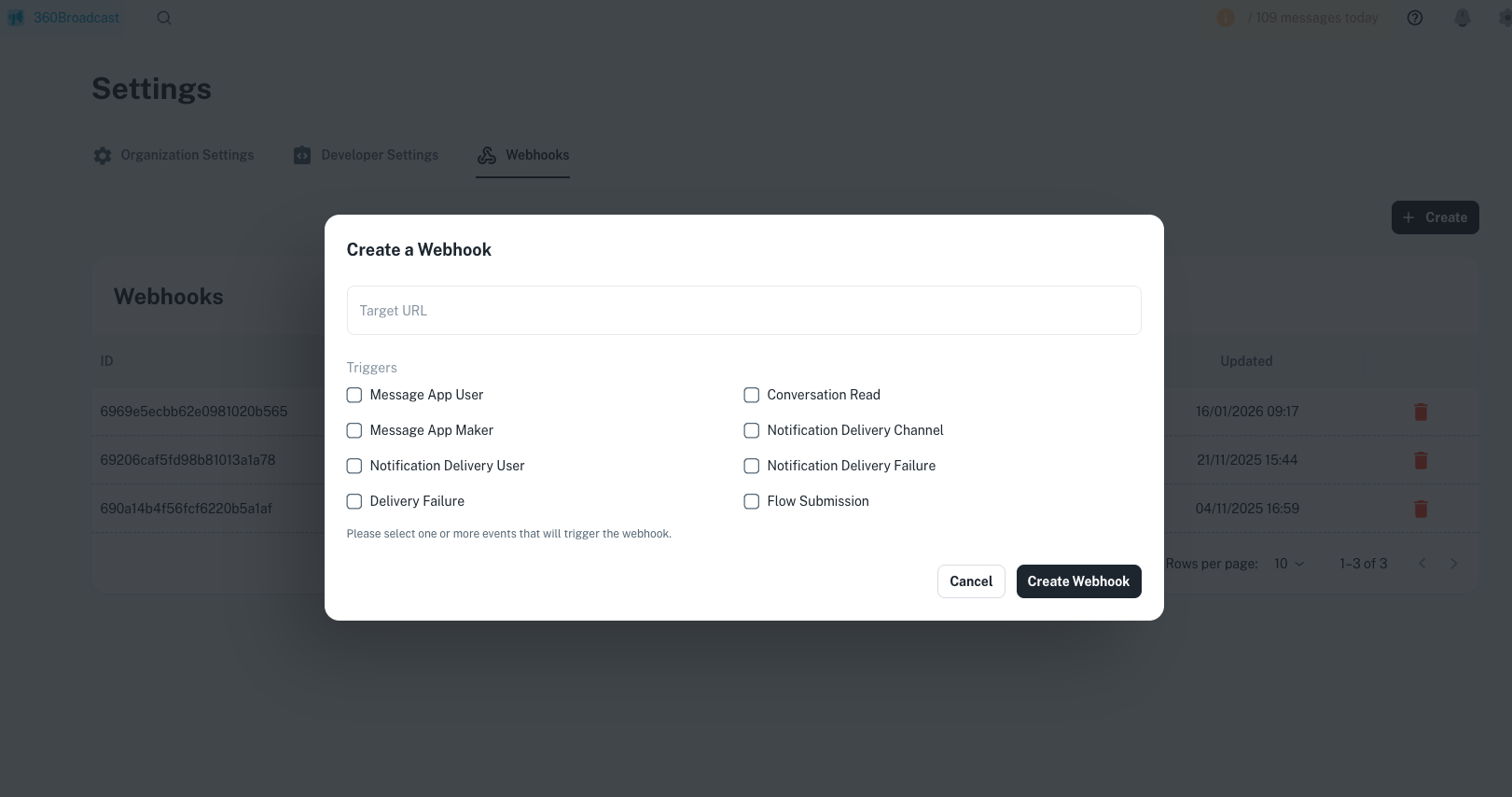
This section displays all webhooks configured for your organisation.

<figure><img src="https://685637647-files.gitbook.io/~/files/v0/b/gitbook-x-prod.appspot.com/o/spaces%2FP4Um8QSERfruL8OrCzQm%2Fuploads%2Fgit-blob-aaaf383ad56fc988b1a79e89ad3b09ae1fb0c1d4%2Fimage.png?alt=media" alt=""><figcaption></figcaption></figure>

### Webhook Triggers

When creating a webhook in the Channel360 frontend, you can subscribe to one or more of the following events:

|                               |                                                                                     |
| ----------------------------- | ----------------------------------------------------------------------------------- |
| Message App User              | Triggered when an end subscriber sends an inbound message.                          |
| Message App Maker             | Triggered when a message is sent from your organisation to the subscriber.          |
| Notification Delivery User    | Triggered when a notification is successfully delivered to the subscriber's device. |
| Notification Delivery Channel | Triggered when a notification is successfully delivered to the channel.             |
| Notification Delivery Failure | Triggered when a notification fails to deliver.                                     |
| Conversation Read             | Triggered when a subscriber reads a conversation.                                   |
| Delivery Failure              | Triggered when an outbound message fails to deliver.                                |
| Flow Submission               | Triggered when a WhatsApp flow is submitted.                                        |

If you came from the **Webhooks API** section, here is the page link below to navigate to the next step which is Templates.

{% content-ref url="<https://github.com/ChannelMobile/Channel360Docs/tree/main/api-usage/using-the-channel360-v1.1-api/templates/README.md>" %}
<https://github.com/ChannelMobile/Channel360Docs/tree/main/api-usage/using-the-channel360-v1.1-api/templates/README.md>
{% endcontent-ref %}


# Templates

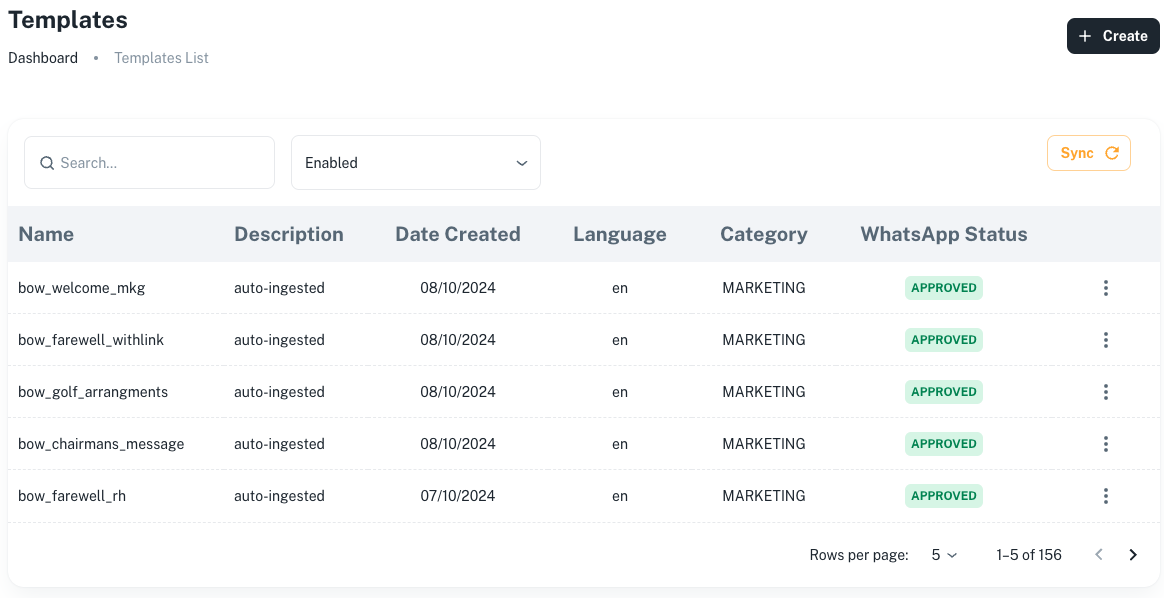
Easily manage your WhatsApp message templates by creating, editing, and tracking their approval status to ensure they’re ready for your campaigns.

Before sending a message through WhatsApp, your broadcast templates must be pre-approved, and Channel360 handles the entire template approval process on your behalf.

<figure><img src="https://685637647-files.gitbook.io/~/files/v0/b/gitbook-x-prod.appspot.com/o/spaces%2FP4Um8QSERfruL8OrCzQm%2Fuploads%2Fgit-blob-c68937154ba3714aa61c02a5c7f0d42983249c0f%2FScreenshot%202024-10-10%20at%2016.44.24.png?alt=media" alt=""><figcaption></figcaption></figure>

Next we'll take you through template creation.


# Template Creation

We provide the following template categories:

<div align="center" data-full-width="false"><figure><img src="https://685637647-files.gitbook.io/~/files/v0/b/gitbook-x-prod.appspot.com/o/spaces%2FP4Um8QSERfruL8OrCzQm%2Fuploads%2Fgit-blob-6e251856d2065fabb6809d70b00e438442d78ab7%2FScreenshot%202024-11-08%20at%2010.49.36.png?alt=media" alt=""><figcaption></figcaption></figure></div>

<table><thead><tr><th width="213">Template Category</th><th>Description</th></tr></thead><tbody><tr><td>Marketing</td><td>Which is primarily used for promotional messages like sales announcements and special offers.</td></tr><tr><td>Utility</td><td>Templates used for post-sale notifications, including delivery updates, payment confirmations, and account notices.</td></tr></tbody></table>

<figure><img src="https://685637647-files.gitbook.io/~/files/v0/b/gitbook-x-prod.appspot.com/o/spaces%2FP4Um8QSERfruL8OrCzQm%2Fuploads%2Fgit-blob-f23c14d11dc951b16f1be11ffb45dca84292296d%2FScreenshot%202024-10-22%20at%2014.47.47.png?alt=media" alt=""><figcaption></figcaption></figure>

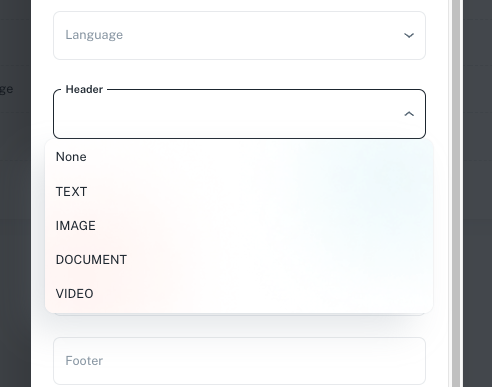
A header allows you to select rich media, such as text, images, or videos, to enhance and lead your broadcast message.

<table><thead><tr><th width="178">Template Types</th><th width="552">Description</th></tr></thead><tbody><tr><td>No Header</td><td>A simple template without a header section.</td></tr><tr><td>Text Header</td><td>Displays bold text at the top of the message. Has a <mark style="color:red;">maximum of 60 characters including parameters.</mark></td></tr><tr><td>PDF Header</td><td>Allows you to attach a PDF file as part of the message. The <mark style="color:red;">maximum size is 15MB.</mark></td></tr><tr><td>Image Header</td><td>Supports image attachments, but the file size must be a <mark style="color:red;">maximum</mark> <mark style="color:red;">of 15MB.</mark></td></tr><tr><td>Video Header</td><td>Allows video attachments in MP4 format, with a <mark style="color:red;">maximum file size of 15MB.</mark></td></tr></tbody></table>

{% hint style="info" %}
You are required to upload an example of the header you'd like. It can be changed once your template is approved.
{% endhint %}

<figure><img src="https://685637647-files.gitbook.io/~/files/v0/b/gitbook-x-prod.appspot.com/o/spaces%2FP4Um8QSERfruL8OrCzQm%2Fuploads%2Fgit-blob-d3a865a86905e30208925ea1511c3c4e8b2ec072%2FScreenshot%202024-10-22%20at%2014.51.59.png?alt=media" alt=""><figcaption></figcaption></figure>

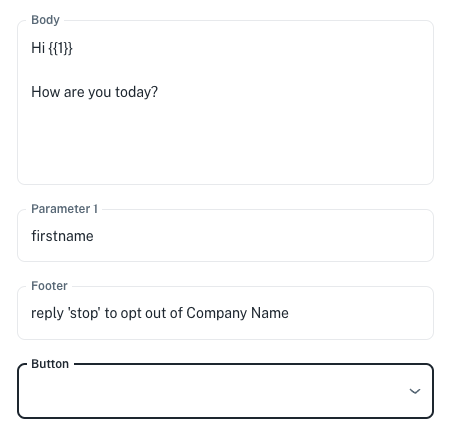
The body of your message can be customized using tags like {{1}}, which represent fields or parameters. When a parameter appears, simply enter placeholder text to show what will populate in that field.

<figure><img src="https://685637647-files.gitbook.io/~/files/v0/b/gitbook-x-prod.appspot.com/o/spaces%2FP4Um8QSERfruL8OrCzQm%2Fuploads%2Fgit-blob-bc4b3e341e76c817bc13e6d02527acc1ee87f127%2FScreenshot%202024-10-22%20at%2014.52.49.png?alt=media" alt=""><figcaption></figcaption></figure>

You can enhance your broadcast by adding customized Quick Reply or Call-to-Action buttons for faster engagement:

* **Quick Reply**: Provide up to 3 instant response options for users.
* **Hyperlink**: Link to a website for more information.
* **Phone Number**: Enable direct calls.

If you came from the **Templates API** section, here is the page link below to navigate to the next step which is **Notifications**.

{% content-ref url="<https://github.com/ChannelMobile/Channel360Docs/tree/main/api-usage/using-the-channel360-v1.1-api/send-your-first-whatsapp-notification/README.md>" %}
<https://github.com/ChannelMobile/Channel360Docs/tree/main/api-usage/using-the-channel360-v1.1-api/send-your-first-whatsapp-notification/README.md>
{% endcontent-ref %}


# Template Configuration

Once your template is approved, and if it includes rich media or tags, you’ll need to configure it before sending:

<figure><img src="https://685637647-files.gitbook.io/~/files/v0/b/gitbook-x-prod.appspot.com/o/spaces%2FP4Um8QSERfruL8OrCzQm%2Fuploads%2Fgit-blob-bc2a26f095db0cd6ace28120974e26708a380e1a%2FScreenshot%202024-10-22%20at%2014.55.58.png?alt=media" alt=""><figcaption></figcaption></figure>

1. **Open the template**: Navigate to the template you want to configure.
2. **Upload rich media**: Add any required images, PDFs, or videos.
   * **Image size limit**: 5MB
   * **Video size limit**: 14MB
   * **PDF size limit**: 100MB
3. **Configure body tags**: Set up any necessary tags within the template body.

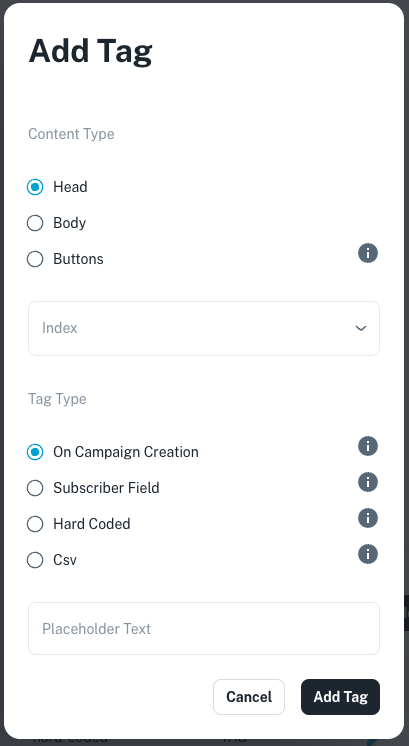
A **tag** is a placeholder in your template that gets replaced with dynamic content when your broadcast is sent. Tags can be used in different parts of the message to personalize or customize it for each recipient.

* **Select Tag Location**: Choose where the tag will appear in the message: Header, Body, or Button.
* **Tag Index**: The index number (e.g., {{1}}, {{2}}) refers to the tag’s position in your preview.

<figure><img src="https://685637647-files.gitbook.io/~/files/v0/b/gitbook-x-prod.appspot.com/o/spaces%2FP4Um8QSERfruL8OrCzQm%2Fuploads%2Fgit-blob-bc5142aadc9923a746a8f29263f31e31540cec59%2FScreenshot%202024-10-22%20at%2014.59.00.png?alt=media" alt=""><figcaption></figcaption></figure>

<table><thead><tr><th width="254">Tag Types</th><th>Description</th></tr></thead><tbody><tr><td>On Campaign Creation</td><td>The campaign creator will be prompted to provide this value when setting up the campaign. The same value will be used for all messages.</td></tr><tr><td>Subscriber Field</td><td>The value will come from each subscriber's information, meaning it will be unique for every recipient.</td></tr><tr><td>Hard Coded</td><td>The value is set in the template and cannot be changed during campaign creation.</td></tr><tr><td>CSV File</td><td>The value will be imported from a CSV file, allowing it to be different for each subscriber.</td></tr></tbody></table>


# Groups

A group is a collection of subscribers that allows for easier management and bulk actions.

By creating groups, you can send campaigns to your targeted groups of subscribers.

<figure><img src="https://685637647-files.gitbook.io/~/files/v0/b/gitbook-x-prod.appspot.com/o/spaces%2FP4Um8QSERfruL8OrCzQm%2Fuploads%2Fgit-blob-1302d87726e0194b00aa81093662d05b1ff7498f%2FScreenshot%202024-10-22%20at%2015.17.20.png?alt=media" alt=""><figcaption></figcaption></figure>

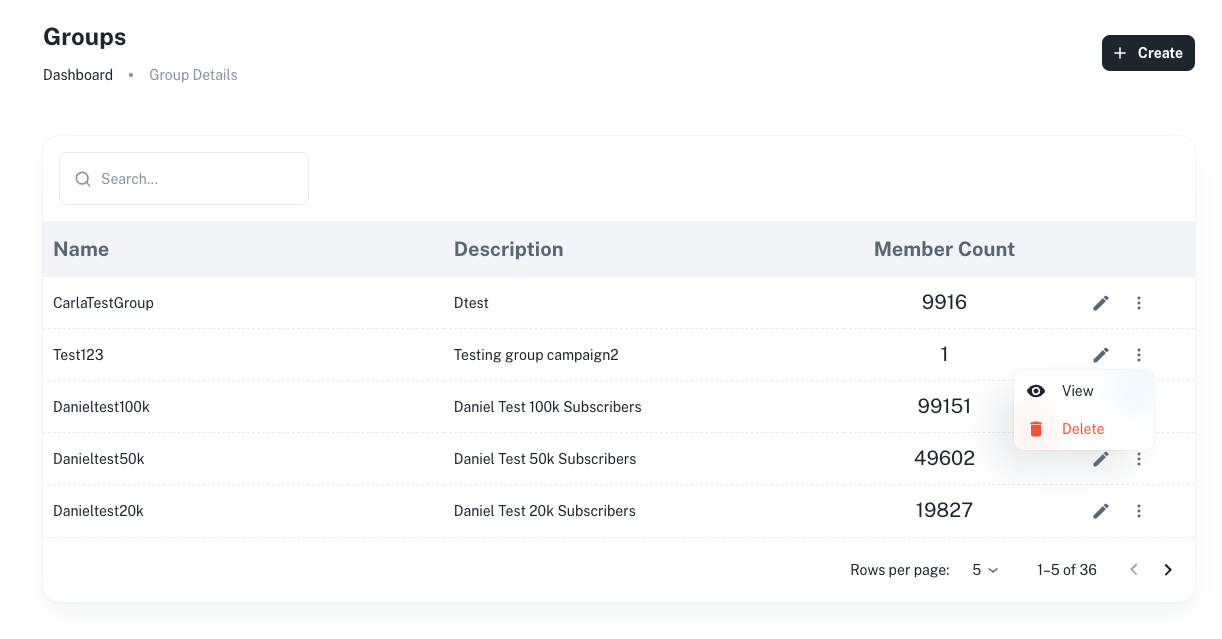
We provide an unlimited number of groups that can be updated or removed at any time.

<figure><img src="https://685637647-files.gitbook.io/~/files/v0/b/gitbook-x-prod.appspot.com/o/spaces%2FP4Um8QSERfruL8OrCzQm%2Fuploads%2Fgit-blob-8cbb9ed497e594858d5b7df5e1cad3af0aab5e4e%2FScreenshot%202024-10-17%20at%2014.15.53.png?alt=media" alt=""><figcaption></figcaption></figure>

On this page, you can edit your group details and view the group for further analysis.


# Deleting Groups

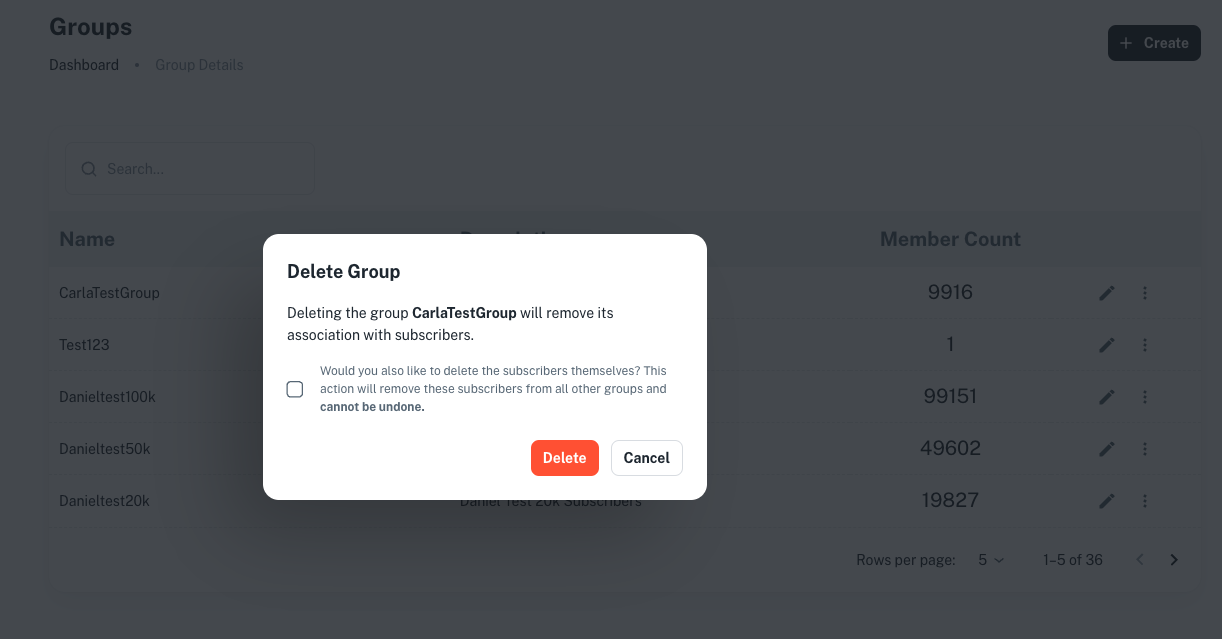
When deleting a group you also have the option to delete the subscribers associated with this group.

This option is for users who want to clean up their subscriber database by removing subscribers in bulk, without needing to delete them one by one. Alternatively, you can simply delete the group while keeping the subscribers in your database.

<figure><img src="https://685637647-files.gitbook.io/~/files/v0/b/gitbook-x-prod.appspot.com/o/spaces%2FP4Um8QSERfruL8OrCzQm%2Fuploads%2Fgit-blob-a2851be4e53d60a9a03da31545de760649d7373f%2Fimage.png?alt=media" alt=""><figcaption></figcaption></figure>


# Managing Group Details

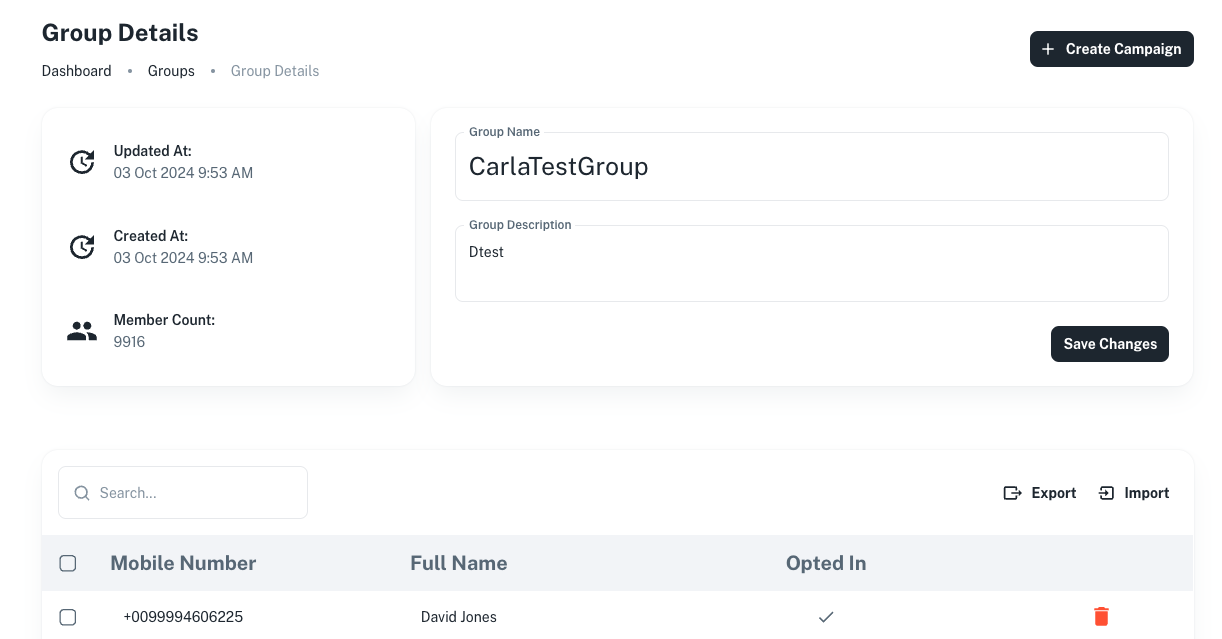
You can easily update your group information by editing the details directly within the group.

<figure><img src="https://685637647-files.gitbook.io/~/files/v0/b/gitbook-x-prod.appspot.com/o/spaces%2FP4Um8QSERfruL8OrCzQm%2Fuploads%2Fgit-blob-dd525be73ea65410936d91173040998b9f5595e4%2FScreenshot%202024-10-17%20at%2014.23.42.png?alt=media" alt=""><figcaption></figcaption></figure>

You can also view additional details, such as the number of subscribers in your group, the date the group was last edited, and when it was originally created.

Within your group you can also do actions like:

* **Import subscribers within your group**: Quickly add multiple subscribers to a group by importing them in bulk using a CSV file.

<figure><img src="https://685637647-files.gitbook.io/~/files/v0/b/gitbook-x-prod.appspot.com/o/spaces%2FP4Um8QSERfruL8OrCzQm%2Fuploads%2Fgit-blob-832a6371eec2020c47ade03747380a0252a44460%2FScreenshot%202024-10-17%20at%2014.36.33.png?alt=media" alt=""><figcaption></figcaption></figure>

* **Schedule or create a campaign for the group**: Plan and execute campaigns for the group.

<figure><img src="https://685637647-files.gitbook.io/~/files/v0/b/gitbook-x-prod.appspot.com/o/spaces%2FP4Um8QSERfruL8OrCzQm%2Fuploads%2Fgit-blob-6ac1be73c550f54bbd0d76304c50c75b23fc27a0%2FScreenshot%202024-10-17%20at%2014.37.43.png?alt=media" alt=""><figcaption></figcaption></figure>

* **Export subscribers from the group**: Export a CSV file of all subscribers within the group for easy reporting.

<figure><img src="https://685637647-files.gitbook.io/~/files/v0/b/gitbook-x-prod.appspot.com/o/spaces%2FP4Um8QSERfruL8OrCzQm%2Fuploads%2Fgit-blob-337e065d15ee2751a6480406088be707dadbb8f2%2Fimage.png?alt=media" alt=""><figcaption></figcaption></figure>


# Campaign

A campaign are messages being sent to your audience, such as promoting a product, sharing updates, or engaging them.

Once your template has been approved, you're then able to create targeted campaigns, allowing you to deliver personalized messages directly to your audience.


# Campaign Creation

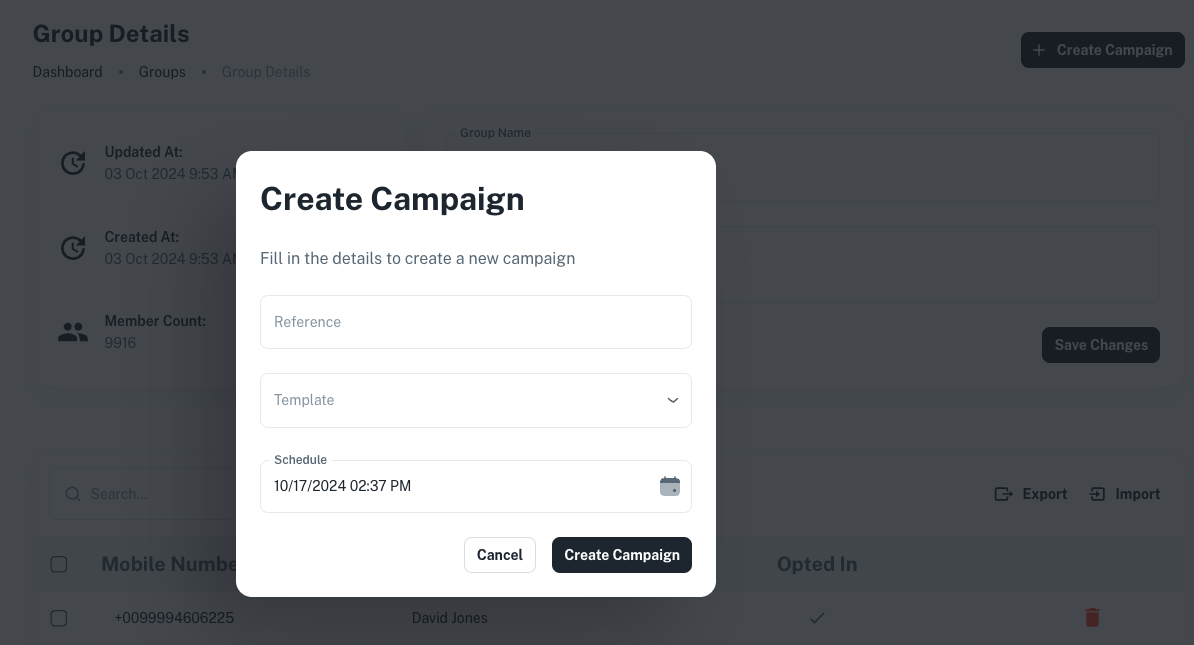
Within your group, you have the ability to create and schedule your campaign.

<figure><img src="https://685637647-files.gitbook.io/~/files/v0/b/gitbook-x-prod.appspot.com/o/spaces%2FP4Um8QSERfruL8OrCzQm%2Fuploads%2Fgit-blob-3edbe9fd060f6db9514c21498f11f80add124ddd%2Fimage.png?alt=media" alt=""><figcaption></figcaption></figure>

Here are the following steps needed to create a campaign:

1. Giving a detailed reference name for the campaign.
2. Select which approved template you'd like to use for this campaign.
3. Choose when you'd like to send your campaign. You can send it now or schedule it for a later date.

To have a calendar view of your campaigns you navigate to Campaigns then Calendar:

This form will popup when you select a campaign.

<figure><img src="https://685637647-files.gitbook.io/~/files/v0/b/gitbook-x-prod.appspot.com/o/spaces%2FP4Um8QSERfruL8OrCzQm%2Fuploads%2Fgit-blob-dda21a806ad03d5a11feb1c7b217b57089d5b04b%2Fimage.png?alt=media" alt=""><figcaption></figcaption></figure>


# Campaign Statistics

**View campaign statistics**: Access detailed analytics for each campaign to track its performance and impact.

<figure><img src="https://685637647-files.gitbook.io/~/files/v0/b/gitbook-x-prod.appspot.com/o/spaces%2FP4Um8QSERfruL8OrCzQm%2Fuploads%2Fgit-blob-03392ef46fee59fbd601ffd9b92a10df5483258e%2Fimage.png?alt=media" alt=""><figcaption></figcaption></figure>

**Monitor subscriber details and statuses**: See which subscribers received the campaign and track their individual engagement statuses.

<figure><img src="https://685637647-files.gitbook.io/~/files/v0/b/gitbook-x-prod.appspot.com/o/spaces%2FP4Um8QSERfruL8OrCzQm%2Fuploads%2Fgit-blob-bf6448da1d27194b9cb3dcb95dc18ce4abb7b014%2Fimage.png?alt=media" alt=""><figcaption></figcaption></figure>

**Review subscriber responses**: View the responses from subscribers for feedback.

<figure><img src="https://685637647-files.gitbook.io/~/files/v0/b/gitbook-x-prod.appspot.com/o/spaces%2FP4Um8QSERfruL8OrCzQm%2Fuploads%2Fgit-blob-a7e2be09d7dcda5f653b797499f2b0ad213d4d57%2Fimage.png?alt=media" alt=""><figcaption></figcaption></figure>


# Subscribers

Subscribers are individuals who have opted in to receive communications from your organization.

In Channel360, subscribers can be put into target groups or they can be targeted individually. This allows you to send targeted messages or campaigns.


# Managing Subscribers

Here is where you're able to manage your subscriber base.

<figure><img src="https://685637647-files.gitbook.io/~/files/v0/b/gitbook-x-prod.appspot.com/o/spaces%2FP4Um8QSERfruL8OrCzQm%2Fuploads%2Fgit-blob-3af1b6906875c7faa51545d97bb1f53981d90dc3%2FScreenshot%202024-10-17%20at%2014.44.39.png?alt=media" alt=""><figcaption></figcaption></figure>

Within the subscribers page you can do similar actions to what occurs within groups:

* **Create and edit individual subscribers**: You can add new subscribers one by one and edit their details as needed.
* **Import subscribers in bulk using a CSV file**: Easily import many subscribers at once by uploading a CSV file.

<figure><img src="https://685637647-files.gitbook.io/~/files/v0/b/gitbook-x-prod.appspot.com/o/spaces%2FP4Um8QSERfruL8OrCzQm%2Fuploads%2Fgit-blob-836ebe8ef47f35c5216a7d788c47a8d11ce8e4c0%2FScreenshot%202024-10-17%20at%2014.46.27.png?alt=media" alt=""><figcaption></figcaption></figure>

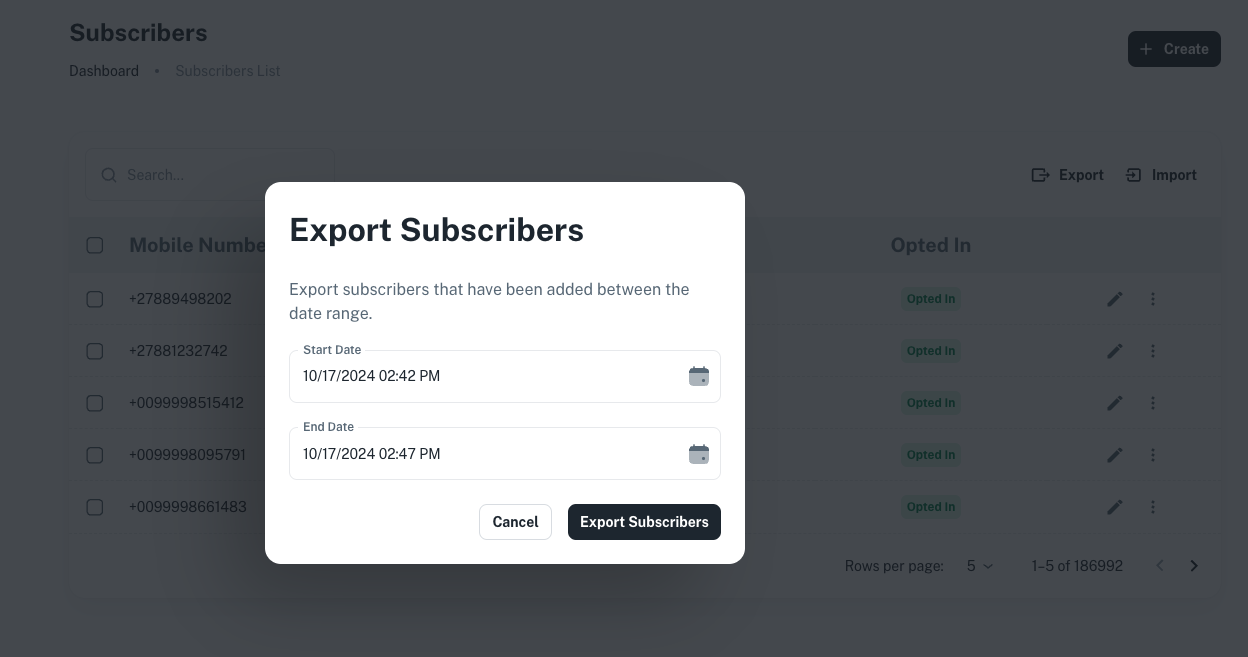
* **Export subscribers by date range**: Export subscribers based on a specific date range.

<figure><img src="https://685637647-files.gitbook.io/~/files/v0/b/gitbook-x-prod.appspot.com/o/spaces%2FP4Um8QSERfruL8OrCzQm%2Fuploads%2Fgit-blob-9f18c3f2a34d0a77500bead9d2d6af67e9397976%2FScreenshot%202024-10-17%20at%2014.49.04.png?alt=media" alt=""><figcaption></figcaption></figure>

* **Assign multiple subscribers to a group**: You can assign a large number of subscribers to a group in one go.

<figure><img src="https://685637647-files.gitbook.io/~/files/v0/b/gitbook-x-prod.appspot.com/o/spaces%2FP4Um8QSERfruL8OrCzQm%2Fuploads%2Fgit-blob-31fdd255b17576db9c76f724cf3b78ed98014cbe%2FScreenshot%202024-10-17%20at%2014.55.02.png?alt=media" alt=""><figcaption></figcaption></figure>


# Subscriber Profile

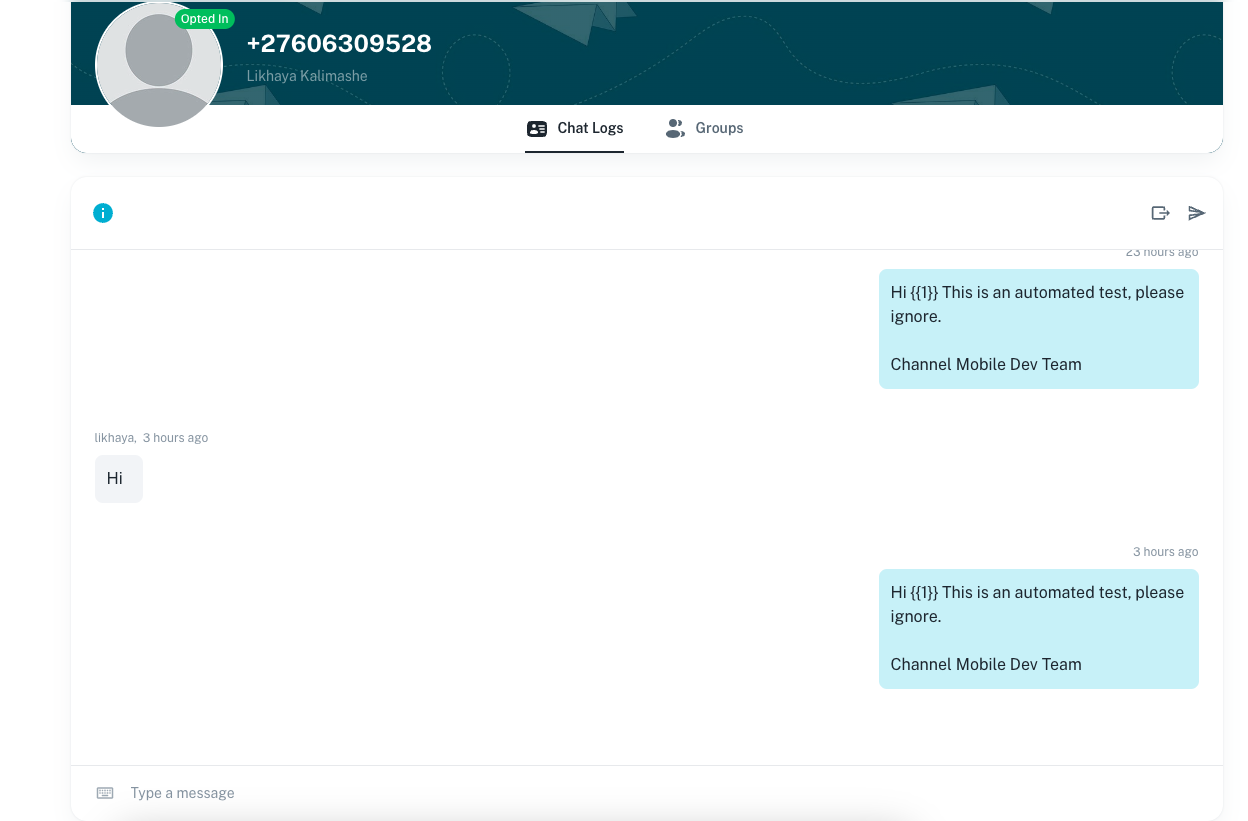
In the subscriber profile view, you can engage in direct conversations with the subscriber and see the conversation history.

You can do the following actions within this page:

<figure><img src="https://685637647-files.gitbook.io/~/files/v0/b/gitbook-x-prod.appspot.com/o/spaces%2FP4Um8QSERfruL8OrCzQm%2Fuploads%2Fgit-blob-70295bfab7dbdeb8677d1d9246c5ee27673ebf35%2FScreenshot%202024-10-17%20at%2015.20.56.png?alt=media" alt=""><figcaption></figcaption></figure>

* You can send individual broadcast messages to subscribers or export the conversation for record-keeping.
* When a subscriber replies to a broadcast message, you have the option to respond with a free-form message directly in the chat window.
* Keep in mind that you have 24 hours to reply after the subscriber's message. Once this period expires, the chat will close, and you’ll need to restart the conversation by sending a new template message to continue the interaction.


# WABA Prerequisites

What do you need to get a WhatsApp Business Account (WABA).

A WhatsApp Business Account (WABA) lets your business use the WhatsApp Business Platform to communicate directly with your customers. You need to meet the following requirements to access the API.

#### **Phone Number:** <a href="#phone-number" id="phone-number"></a>

To start using the WhatsApp Business API, you will need the following:

* A valid phone number - The number must be able to receive an International Phone Call or SMS during the registration process. You must own the phone number.
* A referral link to a signup form (supplied by your Software Partner or Channel360 directly)
* A callback server (typically provided by your Software Partner)

Take a look at the following link which provides the requirements [Meta](https://developers.facebook.com/docs/whatsapp/on-premises/phone-numbers/#requirements) has to valid phone numbers.

We do not provide or lease phone numbers for general use. Phone numbers are only provided for specific Enterprise Use-Cases.

#### Switching to WhatsApp Business API:

If your brand currently uses WhatsApp/Business App with your phone number, you'll need to follow these simple steps (**3 minutes max**) to delete your current account. Afterward, you can seamlessly connect the number with WhatsApp Business API.

{% hint style="warning" %}
A phone number can't be simultaneously used with WhatsApp/Business App and WhatsApp Business API due to Meta's limitation.
{% endhint %}

If you wish to retain your chat history, remember to save it before connecting your number to the API.

#### **Meta Business Manager Account:** <a href="#meta-business-manager-account" id="meta-business-manager-account"></a>

You can use an existing Meta Business Manager Account or you can create a new one during the Embedded Signup process. To find your **Business ID,** login to **Meta Business Manager** and navigate to **Business Settings**. The Business Manager ID is displayed under the business name.

#### Meta Business Manager: Verification & Limitations:

The Meta Business Manager does not need to be verified anymore in order to connect a phone number with WhatsApp Business API.

Have a look at the unverified account limitations and verified account benefits:

{% tabs %}
{% tab title="Unverified Account Limitations:" %}

* Inability to request for an official business account.
* Permits registration of a maximum of 2 phone numbers, which can be assigned to either 1 WABA or split between 2 WABAs.
* Has a notification cap of 250 unique customers within a rolling 24-hour period.
  {% endtab %}

{% tab title="Verified Account Benefits:" %}

* The [display name](https://www.facebook.com/business/help/338047025165344) is visible to end-users, enhancing brand recognition.
* Have no notification limit, enabling broader customer outreach.
* Can register multiple phone numbers and assign them to multiple WABAs, providing flexibility in communication channels.
* Eligible to request an official business account, which enhances credibility and unlocks additional features and support from Meta.
  {% endtab %}
  {% endtabs %}

**WhatsApp Business Compliance:**

Your Business must not violate the [WhatsApp Business Policy](https://www.whatsapp.com/legal/business-policy/). If you are discussing, offering, or completing sales of goods or services, including sending messages in connection with such offers or sales, you must also comply with the [Commerce Policy](https://business.whatsapp.com/policy#policies_for_whatsapp_commerce_features).


# WhatsApp Account Health

In this document we will show you the best way to build and maintain a quality customer experience for your business.

A report or block against your business can impact your business. It stops your from reaching out to potential customers and your template process.

In order to start a conversation you need to have a template message. Templates are pre-built formatted messages that are used to communicate with customers.

How to get your template message approved:

1. **Follow WhatsApp's Guidelines**: Ensure that your template message complies with WhatsApp's policies and guidelines. Guidelines on content, formatting and use of the communication platform shall also be included.
2. **Provide Relevant Information**: Your template message should convey relevant information to the customer. Clearness and relevance are crucial, whether it's an update of the product or confirmation of orders or customer support questions.
3. **Avoid Spammy Content**: In template messages, WhatsApp prohibits the use of false advertising or promotion content. To ensure a good user experience, keep your messages concise and unintrusive.
4. **Personalize When Possible**: In order to increase your engagement, customize your template messages whenever necessary. The conversation can be more meaningful if it addresses the customer by name or provides relevant information.

By following these guidelines, you can increase the chances of getting your template message approved and maintain a healthy WhatsApp account for your business.


# Products

Channel Mobile assists businesses to communicate with their audiences seamlessly through messaging channels.

Leveraging the WhatsApp Business API, we offer a comprehensive toolkit designed to enhance your communication and engagement with customers. We provide the following tools:

* AgentChat
* ChatBot
* SMS
* Broadcasting

Channel360 is a web-based Software as a Service (SaaS) platform that enables users to distribute WhatsApp broadcast messages to their subscribed database.

Next, we'll delve into our services, and pricing, offering tailored solutions to meet your communication needs within your budget.


# AgentChat

**What is AgentChat?**

AgentChat is a web-based communication platform designed to elevate customer service experiences.

It's not just about chatting; it's about creating a seamless, efficient, and engaging interaction between businesses and their customers.

**Key Features:**

With AgentChat, your customers can communicate with your company just as they do normally, while your agents ensure efficient management of their conversations, ensuring a satisfactory experience for all involved parties.

**Here below you can look at the key features of AgentChat:**

| Key Features:                                                                                            |
| -------------------------------------------------------------------------------------------------------- |
| Multiple integration channels with WebChat, Telegram & Facebook Messenger.                               |
| Access 20 reporting metrics, from chat volumes to agent response times.                                  |
| Includes a versatile FAQ chatbot supporting image, PDF, and text responses.                              |
| Offers flexibility with desktop and Progressive Web Application versions for convenience on all devices. |

AgentChat redefines customer-company communication, offering unparalleled efficiency, convenience, and effectiveness for both customers and agents. Embrace the future of customer service with AgentChat.


# SMS

### SMS Short Codes:

Businesses can instantly connect with their customers by means of SMS short codes.

You can easily run promotions, collect valuable feedback through surveys and even make money from premium rate options with our short codes.

For that reason, our short codes are the best way of dealing with your business:

* **Memorable and Effective**: Our short codes are easy to remember, making it simple for customers to interact with your brand.
* **Instant Engagement**: Customers love the convenience of entering contests, making donations, or accessing exclusive offers with just a simple text.
* **Revenue Generation**: Unlock new revenue streams with premium rate short codes, where customers pay to access your services.

### Bulk SMS: Reach Your Audience, Instantly

Do you want to broadcast important updates or promotions for a broad audience? We've got you covered with our bulk SMS service.

<details>

<summary>Features and Benefits:</summary>

* **Effortless Marketing**: Launch targeted campaigns tailored to your audience's preferences, driving satisfaction and retention.
* **Timely Notifications**: Keep your customers informed with timely updates on appointments, packages, and confirmations.
* **Global Reach**: Reach audiences worldwide with urgent and critical information, ensuring your message gets across when it matters most.

</details>

### USSD Solutions: Interactive and Impactful

Our USSD solutions revolutionize real-time interaction, offering a cost-effective and efficient platform for mobile banking, customer surveys, and more. Experience unparalleled engagement and transformation.

<details>

<summary>Why Our USSD Solutions Lead the Way:</summary>

* **Global Accessibility**: Reach every mobile phone user, from basic devices to the latest smartphones, without the need for internet access.
* **Engagement and Conversion**: Guide users through interactive menus, boosting conversion rates and keeping them engaged.
* **Cost-Effective Customer Service**: Reduce call center pressure and improve customer service with rapid and reliable two-way communication.

</details>

### Get started today:

Ready to elevate your communication strategy? Our API, exclusive for WhatsApp Business, and SMS/USSD solutions are poised to revolutionize audience engagement.


# Broadcasting

### How does Channel360 simplify the process?

| Using Channel360 platform                                             |
| --------------------------------------------------------------------- |
| We provide unlimited space for opted in subscribers & groups.         |
| We handle the template approval application.                          |
| Able to import your clients information through CSVs to our database. |
| Can customise templates by adding 'quick reply' buttons.              |
| Send real time or scheduled messages.                                 |
| View stats report based on messages that are sent, delivered or read. |

Once the templates have been approved, there are no limitations on how many campaigns can be sent.

To learn more about Templates, head to this [page](https://github.com/ChannelMobile/Channel360Docs/tree/main/api-usage/using-the-channel360-v1.1-api/templates/README.md).


# ChatBot

These chatbots excel in addressing frequently posed questions, offering foundational troubleshooting aid, and extending general support, ensuring a seamless and efficient customer experience.

### What are the key features our ChatBots have?

| Key Features:                                                  |
| -------------------------------------------------------------- |
| Provide sufficient troubleshooting support.                    |
| Helpful support for various customer inquiries.                |
| User-friendly interface for smooth interaction and navigation. |

Our suite of chatbot solutions provides businesses with a transformative approach to customer service, enabling them to provide efficient and personalised support to their customers.

Our products are suited to a wide range of needs and preferences, from simple informational chatbots to seamless integration with AgentChat live support.


# Get started

What the Channel360 API does, how a message flows, and what you need before you start.

The Channel360 API lets your own system send WhatsApp messages, reply to customers, and find out what happened to every message.

{% hint style="info" %}
Here is a link to our official [Postman Collection](https://www.postman.com/satellite-geoscientist-80349849-7234340/c360-workspace).
{% endhint %}

## How a message flows

```mermaid
sequenceDiagram
    participant You as Your system
    participant C360 as Channel360
    participant WA as WhatsApp
    You->>C360: POST /notification
    C360-->>You: 201 + notification ID (accepted, not yet delivered)
    C360->>WA: Sends the message
    WA->>WA: Delivers it to the customer's phone
    C360-->>You: Webhook events: sent, delivered, read, failed, customer replied
```

You send a request. Channel360 answers straight away with `201` and an ID. That means the message was **accepted, not delivered**. What happens next reaches you later, as webhook events sent to a URL on your server.

## What you can do

| I want to…                                 | Guide                                                                           |
| ------------------------------------------ | ------------------------------------------------------------------------------- |
| Send a WhatsApp message to someone         | [Send a template notification](/api-usage/send-a-template-notification)         |
| Know whether it was delivered or read      | [Receive delivery updates](/api-usage/receive-delivery-updates)                 |
| Answer a customer who messaged us          | [Reply to a customer](/api-usage/reply-to-a-customer)                           |
| Create or check templates from my own code | [Manage templates through the API](/api-usage/manage-templates-through-the-api) |

Most things in Channel360 can also be done in the Channel360 web app. The API is for automation, or for building your own screens.

## What you need

* A Channel360 login that the Channel360 team has assigned to your organisation.
* At least one WhatsApp template with the status **APPROVED**.
* A URL on your server that can receive `POST` requests, for webhooks.

## Next

{% content-ref url="/pages/4scSkzdpFgZjCWAq1QWu" %}
[Quickstart: send your first message](/api-usage/get-started/quickstart)
{% endcontent-ref %}

{% content-ref url="/pages/UhArAKKECMUp6XHC0HCj" %}
[Authentication and your Organisation API URL](/api-usage/get-started/authentication)
{% endcontent-ref %}


# Quickstart: send your first message

Send a WhatsApp message to your own phone and see it delivered, in about ten minutes.

By the end of this page, a WhatsApp message will have arrived on your phone and your server will have been told it was delivered.

## Before you start

* **A Channel360 login.** If you do not have one, sign up in the Channel360 web app. The Channel360 sales or support team then assigns your account to your organisation. You cannot use the API until that is done.
* **One approved template.** For a first test, a template with one placeholder in its body is ideal, for example `Hi {{1}}, welcome to Acme!` named `welcome_message`. Its status in **Templates** must be **APPROVED**.
* **Your own WhatsApp number** to send the test to.

## Steps

### 1. Copy your Organisation API URL

In the Channel360 web app, go to **Settings → Developer Settings**. At the top, the **API details** card shows your **Organization API URL** with a **Copy** button.

It looks like `https://channel360.co.za/v1.1/org/<ORG_ID>`. Every request in these docs starts with it. The part after `/org/` is your organisation ID.

### 2. Create an API key

On the same page, open the **API keys** tab and select **Create**. Give the key a name you will recognise, such as "Production backend", then select **Copy key**.

{% hint style="warning" %}
The full key is shown **once**. Store it somewhere safe, like a password. It only works with your own organisation's URL.
{% endhint %}

### 3. Register a webhook

A webhook is a URL on your server that Channel360 calls to tell you what happened to a message. Without one, you cannot find out whether a message arrived.

Open the **Webhooks** tab and select **Create**. Enter a **Name** and your **Endpoint URL**, then under **Events** tick at least:

* **Notification Delivery Channel**
* **Notification Delivery User**
* **Notification Delivery Failure**

Select **Create**. If you do not have a server yet, use a free request-inspector URL (such as webhook.site) for this test.

### 4. Send the message

Replace `<ORG_ID>`, `<API_KEY>` and the `destination` number (your own, in international format, digits only) before running it.

{% tabs %}
{% tab title="cURL" %}

```bash
curl -X POST "https://channel360.co.za/v1.1/org/<ORG_ID>/notification" \
  -H "Authorization: Bearer <API_KEY>" \
  -H "Content-Type: application/json" \
  -d '{
    "destination": "27821234567",
    "message": {
      "type": "template",
      "template": {
        "name": "welcome_message",
        "language": { "code": "en" },
        "components": [
          {
            "type": "body",
            "parameters": [
              { "type": "text", "text": "Sipho" }
            ]
          }
        ]
      }
    }
  }'
```

{% endtab %}

{% tab title="JavaScript" %}

```javascript
const response = await fetch(
  "https://channel360.co.za/v1.1/org/<ORG_ID>/notification",
  {
    method: "POST",
    headers: {
      Authorization: "Bearer <API_KEY>",
      "Content-Type": "application/json"
    },
    body: JSON.stringify({
      destination: "27821234567",
      message: {
        type: "template",
        template: {
          name: "welcome_message",
          language: { code: "en" },
          components: [
            {
              type: "body",
              parameters: [{ type: "text", text: "Sipho" }]
            }
          ]
        }
      }
    })
  }
);

console.log(await response.json());
```

{% endtab %}

{% tab title="Python" %}

```python
import requests

response = requests.post(
    "https://channel360.co.za/v1.1/org/<ORG_ID>/notification",
    headers={
        "Authorization": "Bearer <API_KEY>",
        "Content-Type": "application/json",
    },
    json={
        "destination": "27821234567",
        "message": {
            "type": "template",
            "template": {
                "name": "welcome_message",
                "language": {"code": "en"},
                "components": [
                    {
                        "type": "body",
                        "parameters": [{"type": "text", "text": "Sipho"}],
                    }
                ],
            },
        },
    },
)

print(response.json())
```

{% endtab %}
{% endtabs %}

If your template is not `welcome_message`, change `name`, `language` and the `parameters` to match it. [Filling template placeholders](/api-usage/send-a-template-notification/filling-template-placeholders) explains how.

### 5. Check the response

A successful request returns HTTP `201` and a notification ID:

```json
{ "notification": { "_id": "6710f3c2a1b2c3d4e5f60789" } }
```

{% hint style="info" %}
`201` means Channel360 accepted and queued the message. It does not mean the message was delivered. Delivery is reported to your webhook.
{% endhint %}

## Check it worked

* The message arrives on your phone.
* Your webhook receives `notification:delivery:channel` (WhatsApp accepted the message), then `notification:delivery:user` (it reached your phone).
* If it receives `notification:delivery:failure` instead, read the `error` object in it and see [Troubleshooting](/api-usage/troubleshooting).
* If your webhook received nothing, open **Settings → Developer Settings → Delivery Logs**. It lists every attempt Channel360 made to call your URL and the response your server gave.

## What can go wrong

| What you see                                      | Why                                                                    | What to do                                                                                      |
| ------------------------------------------------- | ---------------------------------------------------------------------- | ----------------------------------------------------------------------------------------------- |
| **400** `Could not find a valid template`         | Channel360 cannot find a template with that name in your organisation. | Check the name, underscores and case against **Templates** in the web app.                      |
| **400** `Template language code must be provided` | `message.template.language.code` is missing.                           | Add `"language": { "code": "en" }`, using your template's language.                             |
| **400** `Organization Not Found`                  | The organisation ID in the URL does not exist.                         | Copy the Organisation API URL again.                                                            |
| **401 / 403** unauthorised                        | The API key is missing, wrong, or belongs to another organisation.     | Check the `Authorization: Bearer …` header and the URL.                                         |
| **201**, but no message arrives                   | Channel360 accepted it, but WhatsApp rejected it later.                | Check your webhook for `notification:delivery:failure`, then check the template and parameters. |

The full list is in [Troubleshooting](/api-usage/troubleshooting).

## Next

{% content-ref url="/pages/F7sOcPd43S0m5RiC3IXD" %}
[Send a template notification](/api-usage/send-a-template-notification)
{% endcontent-ref %}

{% content-ref url="/pages/NtsbXspiU4OagtOGfKyY" %}
[Receive delivery updates](/api-usage/receive-delivery-updates)
{% endcontent-ref %}


# Authentication and your Organisation API URL

How API requests are authorised, and where to find your API key and Organisation API URL.

Every request needs your API key in a header and your organisation ID in the URL, and the two must belong together.

## The two things every request needs

| What                     | Where it goes                                | Where to find it                                                             |
| ------------------------ | -------------------------------------------- | ---------------------------------------------------------------------------- |
| **Organisation API URL** | The start of every URL                       | **Settings → Developer Settings**, the **API details** card, **Copy** button |
| **API key**              | The header `Authorization: Bearer <API_KEY>` | **Settings → Developer Settings → API keys** tab                             |

The Organisation API URL looks like this:

```
https://channel360.co.za/v1.1/org/<ORG_ID>
```

Requests are HTTPS only. Every path in these docs, such as `/notification`, goes on the end of this URL.

## A key works only with its own organisation

An API key is created under one organisation. The organisation ID in the URL must be that same organisation, or the request is rejected with `401` or `403`.

If you have access to more than one organisation, create a separate key in each one.

## Managing keys

* **Create** as many keys as you need. One key per system (for example "Website" and "CRM") makes it easy to switch one off without affecting the others.
* **The full key is shown once**, when you create it. The **API keys** table afterwards shows it masked.
* **Revoke** in the **API keys** table removes a key immediately and permanently. Anything still using it stops working.

## Related

{% content-ref url="/pages/4scSkzdpFgZjCWAq1QWu" %}
[Quickstart: send your first message](/api-usage/get-started/quickstart)
{% endcontent-ref %}

{% content-ref url="/pages/GpUhgpfkZfSbzo9LoHVe" %}
[Troubleshooting and error messages](/api-usage/troubleshooting)
{% endcontent-ref %}


# Send a template notification

Send one approved WhatsApp template to one person with one API request.

Send one approved WhatsApp template message to one person with one API request.

{% hint style="info" %}
**The Channel360 web app and the API send messages separately.** The API ignores template tag settings. Put your actual placeholder values in the API request.

The template must exist under your organisation and be approved by WhatsApp. [Tags vs. the API](/api-usage/concepts/tags-vs-the-api) explains the difference.
{% endhint %}

## Words used on this page

| Term             | Meaning                                                                                      |
| ---------------- | -------------------------------------------------------------------------------------------- |
| **Notification** | One WhatsApp message sent to one person through the API.                                     |
| **Template**     | A WhatsApp-approved message. It can contain numbered blanks such as `{{1}}`.                 |
| **Placeholder**  | A numbered blank in a template.                                                              |
| **Component**    | A part of a template: header, body or button. In the request these are written in lowercase. |
| **Parameters**   | Values that fill placeholders, in order.                                                     |

## Before you start

* **An API key** — **Settings → Developer Settings → API keys** tab → **Create**.
* **Your Organisation API URL** — the **Copy** button on the **API details** card on the same page.
* **A webhook**, so you can see what happened to the message — see [Receive delivery updates](/api-usage/receive-delivery-updates).

[Authentication](/api-usage/get-started/authentication) explains the key and URL in more detail.

## Steps

### 1. Check the template

1. Open **Templates** in the Channel360 web app.
2. Create the template or select an existing one.
3. Wait until its status is **APPROVED**.
4. Copy its exact name and language code.
5. Note each placeholder and its order.

For example, record `order_shipped`, `en`, and `{{1}}`, `{{2}}`, `{{3}}`.

You do not need to configure template tags for API sends.

### 2. Build the request

Send a `POST` request to:

```
https://channel360.co.za/v1.1/org/<ORG_ID>/notification
```

Add these headers:

```
Authorization: Bearer <API_KEY>
Content-Type: application/json
```

| Field                            | Required | Value                                                                                                        |
| -------------------------------- | -------- | ------------------------------------------------------------------------------------------------------------ |
| `destination`                    | Yes      | Recipient mobile number in international format, country code included, digits only. Example: `27821234567`. |
| `message.type`                   | Yes      | Always `"template"`.                                                                                         |
| `message.template.name`          | Yes      | Exact approved template name.                                                                                |
| `message.template.language.code` | Yes      | Exact approved language code, such as `"en"`.                                                                |
| `message.template.components`    | Yes      | Components and parameters to fill. Use `[]` when there are no placeholders.                                  |
| `msg_id`                         | No       | Your reference, such as an order number. It comes back in delivery updates.                                  |

### 3. Fill placeholders

Add a component for each template part that has placeholders.

List the parameters in placeholder order. The first parameter fills `{{1}}`.

For a template with `Hi {{1}}, welcome to Acme!`, send:

```json
{
  "destination": "27821234567",
  "message": {
    "type": "template",
    "template": {
      "name": "welcome_message",
      "language": { "code": "en" },
      "components": [
        {
          "type": "body",
          "parameters": [
            { "type": "text", "text": "Sipho" }
          ]
        }
      ]
    }
  }
}
```

See [Filling template placeholders](/api-usage/send-a-template-notification/filling-template-placeholders) for media headers and URL buttons.

### 4. Send it

Replace the values inside `<…>` before running this command.

{% tabs %}
{% tab title="cURL" %}

```bash
curl -X POST "https://channel360.co.za/v1.1/org/<ORG_ID>/notification" \
  -H "Authorization: Bearer <API_KEY>" \
  -H "Content-Type: application/json" \
  -d '{
    "destination": "27821234567",
    "message": {
      "type": "template",
      "template": {
        "name": "welcome_message",
        "language": { "code": "en" },
        "components": [
          {
            "type": "body",
            "parameters": [
              { "type": "text", "text": "Sipho" }
            ]
          }
        ]
      }
    }
  }'
```

{% endtab %}

{% tab title="JavaScript" %}

```javascript
const response = await fetch(
  "https://channel360.co.za/v1.1/org/<ORG_ID>/notification",
  {
    method: "POST",
    headers: {
      Authorization: "Bearer <API_KEY>",
      "Content-Type": "application/json"
    },
    body: JSON.stringify({
      destination: "27821234567",
      message: {
        type: "template",
        template: {
          name: "welcome_message",
          language: { code: "en" },
          components: [
            {
              type: "body",
              parameters: [{ type: "text", text: "Sipho" }]
            }
          ]
        }
      }
    })
  }
);

console.log(await response.json());
```

{% endtab %}

{% tab title="Python" %}

```python
import requests

response = requests.post(
    "https://channel360.co.za/v1.1/org/<ORG_ID>/notification",
    headers={
        "Authorization": "Bearer <API_KEY>",
        "Content-Type": "application/json",
    },
    json={
        "destination": "27821234567",
        "message": {
            "type": "template",
            "template": {
                "name": "welcome_message",
                "language": {"code": "en"},
                "components": [
                    {
                        "type": "body",
                        "parameters": [{"type": "text", "text": "Sipho"}],
                    }
                ],
            },
        },
    },
)

print(response.json())
```

{% endtab %}
{% endtabs %}

### 5. Check the response

A successful request returns HTTP `201` and a notification ID:

```json
{ "notification": { "_id": "6710f3c2a1b2c3d4e5f60789" } }
```

{% hint style="warning" %}
`201` means Channel360 accepted and queued the message. It does not mean the message was delivered.
{% endhint %}

Save the `_id` and your `msg_id`, if used. They help you match delivery updates.

### 6. Get delivery updates

Delivery results reach you **only** through webhooks. If no webhook is registered for your organisation, you cannot find out whether the message arrived.

Channel360 posts status updates to your webhook: sent, delivered, read or failed. They include your `msg_id`. See [Receive delivery updates](/api-usage/receive-delivery-updates) to set this up.

## Check it worked

* The message arrives on the recipient's phone.
* Your webhook receives `notification:delivery:channel` when WhatsApp accepts the message.
* It then receives `notification:delivery:user` when the message reaches the phone.
* If it receives `notification:delivery:failure` instead, its `error` object says why.

## What can go wrong

| What you see                                      | Why                                                                    | What to do                                                                                      |
| ------------------------------------------------- | ---------------------------------------------------------------------- | ----------------------------------------------------------------------------------------------- |
| **400** `Could not find a valid template`         | Channel360 cannot find a template with that name in your organisation. | Check the name, underscores and case. Check the organisation ID.                                |
| **400** `Template language code must be provided` | `message.template.language.code` is missing.                           | Add `"language": { "code": "en" }`.                                                             |
| **400** `Organization Not Found`                  | The organisation ID in the URL does not exist.                         | Copy the Organisation API URL again.                                                            |
| **401 / 403** unauthorised                        | The API key is missing, wrong, or belongs to another organisation.     | Check the `Authorization: Bearer …` header and organisation ID.                                 |
| **201**, but no message arrives                   | The request was accepted. WhatsApp later rejected the message.         | Check parameter counts, language, public media links and template approval. Check your webhook. |

Every error message is listed in [Troubleshooting](/api-usage/troubleshooting).

## Next

{% content-ref url="/pages/Pvr9fMGmTMGuq2mIeqER" %}
[Filling template placeholders](/api-usage/send-a-template-notification/filling-template-placeholders)
{% endcontent-ref %}

{% content-ref url="/pages/NtsbXspiU4OagtOGfKyY" %}
[Receive delivery updates](/api-usage/receive-delivery-updates)
{% endcontent-ref %}

{% content-ref url="/pages/RJMlaxNFSbVbTDbJ9pC3" %}
[Tags vs. the API](/api-usage/concepts/tags-vs-the-api)
{% endcontent-ref %}


# Filling template placeholders

Learn how to provide text, media, and button values for a template.

This page explains how to fill a template's placeholders in the `components` list of a [template notification](/api-usage/send-a-template-notification) request.

A placeholder is a numbered blank in an approved template, such as `{{1}}`.

## The rule

For every template part with placeholders, add one object to `components`.

List its `parameters` in order. The first value fills `{{1}}`. The second fills `{{2}}`.

Do not include the `{{ }}` braces in a value.

## From template to request

A template and the request that sends it describe the same parts, but in different shapes. This section puts them next to each other.

### The template

This is the approved template `order_shipped` (language `en`), as [Get one template by name](/api-usage/manage-templates-through-the-api#get-one-template-by-name) returns it. You can also see the same parts in **Templates** in the web app.

```json
{
  "name": "order_shipped",
  "language": "en",
  "status": "APPROVED",
  "components": [
    { "type": "HEADER", "format": "IMAGE" },
    { "type": "BODY", "text": "Hi {{1}}, your order {{2}} has shipped and will arrive on {{3}}." },
    { "type": "FOOTER", "text": "Thank you for shopping with us" },
    {
      "type": "BUTTONS",
      "buttons": [
        { "type": "URL", "text": "Track order", "url": "https://shop.example.com/track/{{1}}" }
      ]
    }
  ]
}
```

### How each part maps

| In the template                                 | Placeholders | In your request (`components`)                                                                     |
| ----------------------------------------------- | ------------ | -------------------------------------------------------------------------------------------------- |
| `name`: `order_shipped`                         | —            | `message.template.name`: `"order_shipped"`                                                         |
| `language`: `en`                                | —            | `message.template.language.code`: `"en"`                                                           |
| `HEADER` with `format`: `IMAGE`                 | the image    | `{ "type": "header", "parameters": [ { "type": "image", "image": { "link": "…" } } ] }`            |
| `BODY` with `{{1}}`, `{{2}}`, `{{3}}`           | 3            | `{ "type": "body", "parameters": [ … ] }` with three `text` values, in order                       |
| `FOOTER` with no placeholders                   | 0            | Leave it out                                                                                       |
| First entry in `BUTTONS`, URL ending in `{{1}}` | 1            | `{ "type": "button", "sub_type": "url", "index": "0", "parameters": [ … ] }` with one `text` value |

Four rules make the translation:

1. **Lowercase the type.** `HEADER` becomes `header`, `BODY` becomes `body`.
2. **One request entry per button, not one for all buttons.** `BUTTONS` becomes a separate `button` entry for each button that has a placeholder, with `index` set to its position, counting from `"0"`.
3. **One parameter per placeholder.** Count the `{{n}}` in that part; send exactly that many values, in order.
4. **Leave out parts with nothing to fill.** The footer here has no placeholders, so it does not appear in the request. A media header always needs its file, even though it shows no `{{n}}`.

## Worked example

This is the full request for the `order_shipped` template above:

```json
{
  "destination": "27821234567",
  "msg_id": "ORDER-10045",
  "message": {
    "type": "template",
    "template": {
      "name": "order_shipped",
      "language": { "code": "en" },
      "components": [
        {
          "type": "header",
          "parameters": [
            {
              "type": "image",
              "image": { "link": "https://shop.example.com/img/parcel.jpg" }
            }
          ]
        },
        {
          "type": "body",
          "parameters": [
            { "type": "text", "text": "Thandi" },
            { "type": "text", "text": "10045" },
            { "type": "text", "text": "Friday 9 October" }
          ]
        },
        {
          "type": "button",
          "sub_type": "url",
          "index": "0",
          "parameters": [
            { "type": "text", "text": "10045" }
          ]
        }
      ]
    }
  }
}
```

The customer receives the parcel image, "Hi Thandi, your order 10045 has shipped and will arrive on Friday 9 October.", the footer, and a tracking button. The button opens `https://shop.example.com/track/10045`.

{% hint style="warning" %}
The number of parameters must match the placeholders in that template part. WhatsApp rejects messages with too many or too few values.
{% endhint %}

## Fragments: drop these into `components`

The examples below are single entries for the `components` list, not complete requests. Put them inside `message.template.components` in a request like the worked example above.

### Use media in a header

An image, video, or document header needs a public `https://` link. WhatsApp downloads the file from that link.

```json
{
  "type": "header",
  "parameters": [
    { "type": "video", "video": { "link": "https://example.com/video.mp4" } }
  ]
}
```

Use this shape for a document header:

```json
{
  "type": "header",
  "parameters": [
    {
      "type": "document",
      "document": {
        "link": "https://example.com/invoice.pdf",
        "filename": "invoice.pdf"
      }
    }
  ]
}
```

### Fill a URL button

Set `index` to the button position, starting at `"0"`.

```json
{
  "type": "button",
  "sub_type": "url",
  "index": "0",
  "parameters": [
    { "type": "text", "text": "10045" }
  ]
}
```

Leave template parts without placeholders out of `components`.

For a template with no placeholders, send an empty list:

```json
{ "components": [] }
```

## Next

{% content-ref url="/pages/RJMlaxNFSbVbTDbJ9pC3" %}
[Tags vs. the API](/api-usage/concepts/tags-vs-the-api)
{% endcontent-ref %}

{% content-ref url="/pages/UAUsKmCKXoQDu5gIwW8Q" %}
[Templates, placeholders and components](/api-usage/concepts/templates-placeholders-and-components)
{% endcontent-ref %}


# Receive delivery updates

Get told when a message is sent, delivered, read or fails, and when a customer writes to you.

Channel360 tells your system what happened to each message — sent, delivered, read, failed — and when a customer writes to you, by calling a URL on your server. This page sets that up.

{% hint style="info" %}
Delivery results, failures, read receipts and customer messages are **only** available through webhooks. If no webhook is registered when they happen, they are not stored for you to collect later.
{% endhint %}

## Before you start

* A public HTTPS URL on your server that accepts `POST` requests with a JSON body.
* An API key, if you register the webhook through the API. See [Authentication](/api-usage/get-started/authentication).

## Steps

### 1. Choose your events

An **event** (also called a trigger) is the kind of thing that happened. You choose which events your webhook receives.

| Event                           | When it is sent                                                                                                        | Typical use                                                  |
| ------------------------------- | ---------------------------------------------------------------------------------------------------------------------- | ------------------------------------------------------------ |
| `notification:delivery:channel` | Your template message was accepted by WhatsApp (sent).                                                                 | Mark "sent".                                                 |
| `notification:delivery:user`    | Your template message reached the customer's phone (delivered).                                                        | Mark "delivered".                                            |
| `notification:delivery:failure` | Your template message failed. The `error` object says why.                                                             | Alert, then fix and resend.                                  |
| `notification:match:failure`    | The message failed before it reached WhatsApp, for example because the number could not be matched to a WhatsApp user. | Check the number.                                            |
| `conversation:read`             | The customer read the conversation.                                                                                    | Mark "read".                                                 |
| `message:appUser`               | The customer sent you a message.                                                                                       | Start or continue a [reply](/api-usage/reply-to-a-customer). |
| `message:delivery:channel`      | A reply you sent (text, media, interactive) was accepted by WhatsApp.                                                  | Mark the reply "sent".                                       |
| `message:delivery:user`         | A reply you sent reached the customer's phone.                                                                         | Mark the reply "delivered".                                  |
| `message:delivery:failure`      | A reply you sent failed.                                                                                               | Alert.                                                       |
| `flow:submission`               | The customer submitted a WhatsApp Flow form.                                                                           | Read the answers.                                            |
| `template:status`               | A template was imported, or its approval status changed.                                                               | Refresh your template list.                                  |

The web app shows these with friendly labels, for example **Notification Delivery User**. The API uses the names in the first column.

### 2. Register the webhook

{% tabs %}
{% tab title="In the web app (easiest)" %}

1. Go to **Settings → Developer Settings → Webhooks** and select **Create**.
2. Enter a **Name** and your **Endpoint URL**.
3. Under **Events**, tick the events you want.
4. Select **Create**.

{% content-ref url="/pages/rw2bt83dh9k1qR6ffKiw" %}
[Webhooks](/channel360-guide/webhooks)
{% endcontent-ref %}
{% endtab %}

{% tab title="Through the API" %}
`POST` `/org/<ORG_ID>/webhooks`

```bash
curl -X POST "https://channel360.co.za/v1.1/org/<ORG_ID>/webhooks" \
  -H "Authorization: Bearer <API_KEY>" \
  -H "Content-Type: application/json" \
  -d '{
    "name": "Order system",
    "target": "https://example.com/channel360/webhook",
    "triggers": [
      "notification:delivery:channel",
      "notification:delivery:user",
      "notification:delivery:failure",
      "conversation:read",
      "message:appUser"
    ]
  }'
```

This call **creates or updates**. If `name` (or `id`) matches a webhook you already have, that webhook is updated and the response is `200`. Otherwise a new webhook is created and the response is `201`:

```json
{
  "message": "Webhook Order system created successfully",
  "data": { "id": "webhook_example_123456", "target": "https://example.com/channel360/webhook", "triggers": ["…"] }
}
```

{% endtab %}
{% endtabs %}

### 3. Reply `200` quickly

Your endpoint must answer with any `2xx` status **within 5 seconds**. Do the real work — database writes, calls to other systems — after replying, or in a background job.

### 4. Ignore duplicates

Every call carries an `X-Channel360-Delivery-Id` header. A retried call carries the **same** value. Store the values you have processed and ignore repeats.

### 5. Route by `trigger`

Every payload has a top-level `trigger` field naming the event.

{% tabs %}
{% tab title="JavaScript (Express)" %}

```javascript
import express from "express";

const app = express();
app.use(express.json());

app.post("/channel360/webhook", (req, res) => {
  res.sendStatus(200); // answer first, then do the work

  const event = req.body;
  switch (event.trigger) {
    case "notification:delivery:user":
      console.log("Delivered:", event.notification._id);
      break;
    case "notification:delivery:failure":
      console.log("Failed:", event.notification._id, event.error);
      break;
    case "message:appUser":
      console.log("Customer wrote:", event.messages[0].text);
      break;
  }
});

app.listen(3000);
```

{% endtab %}

{% tab title="Python (Flask)" %}

```python
from flask import Flask, request

app = Flask(__name__)

@app.post("/channel360/webhook")
def channel360_webhook():
    event = request.get_json()
    trigger = event.get("trigger")

    if trigger == "notification:delivery:user":
        print("Delivered:", event["notification"]["_id"])
    elif trigger == "notification:delivery:failure":
        print("Failed:", event["notification"]["_id"], event.get("error"))
    elif trigger == "message:appUser":
        print("Customer wrote:", event["messages"][0].get("text"))

    # Keep this handler fast; move slow work to a background job.
    return "", 200
```

{% endtab %}
{% endtabs %}

## Check it worked

* Send a test message (see the [Quickstart](/api-usage/get-started/quickstart)). Within a few seconds your endpoint receives `notification:delivery:channel`, then `notification:delivery:user`.
* If nothing arrives, open **Settings → Developer Settings → Delivery Logs**. It lists Channel360's attempts to call your URL and the response your server gave.

## Retries

* Channel360 tries each event **up to 5 times over about 15 minutes**. The gaps grow: about 30 seconds, 2 minutes, 5 minutes, then 7½ minutes.
* It **retries** when your server does not answer within 5 seconds, cannot be reached, returns `5xx`, returns `429 Too Many Requests`, or returns a redirect (`3xx`).
* It **stops immediately** when your server returns any other `4xx`, such as `400`, `401` or `404`. Channel360 treats a `4xx` as "never send me this again".
* After the fifth failed attempt, the event is not sent again.

## Example payloads

Use these examples to test your handler and map the fields for each event. They use fictional data.

The payloads include an `appUser._id`: Channel360's ID for one customer on your WhatsApp number. It is created when the customer first interacts with your number, and you need it to [reply](/api-usage/reply-to-a-customer). [Identifiers](/api-usage/concepts/identifiers) explains every ID you will see.

<details>

<summary><code>notification:delivery:channel</code></summary>

This event is sent when a notification is accepted by the channel (WhatsApp).

```json
{
  "trigger": "notification:delivery:channel",
  "version": "v1.1",
  "app": {
    "_id": "app_example_123456789"
  },
  "timestamp": 1781855992.093,
  "destination": {
    "type": "whatsapp",
    "integrationId": "integration_example_123456",
    "destinationId": "27820000000"
  },
  "isFinalEvent": false,
  "externalMessages": [
    {
      "id": "wamid.EXAMPLE_MESSAGE_ID_1234567890"
    }
  ],
  "notification": {
    "_id": "notification_example_123456"
  },
  "matchResult": {
    "client": {
      "integrationId": "integration_example_123456",
      "externalId": "27820000000",
      "id": "client_example_123456",
      "displayName": "+27 82 000 0000",
      "status": "active",
      "raw": {
        "from": "27820000000",
        "profile": {
          "name": "Example User"
        }
      },
      "lastSeen": "2026-06-18T12:46:11.066Z",
      "linkedAt": "2022-08-11T21:36:21.156Z",
      "_id": "client_record_example_123456",
      "platform": "whatsapp",
      "active": true,
      "blocked": false,
      "primary": true
    },
    "appUser": {
      "_id": "appuser_example_123456",
      "authenticated": false,
      "conversationStarted": true
    },
    "conversation": {
      "_id": "conversation_example_123456"
    }
  }
}
```

</details>

<details>

<summary><code>notification:delivery:user</code></summary>

This event is sent when a notification reaches the user's device.

```json
{
  "trigger": "notification:delivery:user",
  "version": "v1.1",
  "app": {
    "_id": "app_example_123456789"
  },
  "timestamp": 1781855997.352,
  "destination": {
    "type": "whatsapp",
    "integrationId": "integration_example_123456",
    "destinationId": "27820000000"
  },
  "isFinalEvent": true,
  "externalMessages": [
    {
      "id": "wamid.EXAMPLE_MESSAGE_ID_1234567890"
    }
  ],
  "notification": {
    "_id": "notification_example_123456"
  },
  "matchResult": {
    "client": {
      "integrationId": "integration_example_123456",
      "externalId": "27820000000",
      "id": "client_example_123456",
      "displayName": "+27 82 000 0000",
      "status": "active",
      "raw": {
        "from": "27820000000",
        "profile": {
          "name": "Example User"
        }
      },
      "lastSeen": "2026-06-18T12:46:11.066Z",
      "linkedAt": "2022-08-11T21:36:21.156Z",
      "_id": "client_record_example_123456",
      "platform": "whatsapp",
      "active": true,
      "blocked": false,
      "primary": true
    },
    "appUser": {
      "_id": "appuser_example_123456",
      "authenticated": false,
      "conversationStarted": true
    },
    "conversation": {
      "_id": "conversation_example_123456"
    }
  }
}
```

</details>

<details>

<summary><code>conversation:read</code></summary>

This event is sent when the user reads the conversation.

```json
{
  "trigger": "conversation:read",
  "timestamp": 1781856019.856,
  "version": "v1.1",
  "app": {
    "_id": "app_example_123456789"
  },
  "appUser": {
    "_id": "appuser_example_123456",
    "givenName": "Example User",
    "signedUpAt": "2022-08-11T21:36:21.156Z",
    "properties": {},
    "identities": [],
    "authenticated": false,
    "conversationStarted": true
  },
  "conversation": {
    "_id": "conversation_example_123456"
  },
  "client": {
    "integrationId": "integration_example_123456",
    "externalId": "27820000000",
    "id": "client_example_123456",
    "displayName": "+27 82 000 0000",
    "status": "active",
    "raw": {
      "from": "27820000000",
      "profile": {
        "name": "Example User"
      }
    },
    "lastSeen": "2026-06-18T12:46:11.066Z",
    "linkedAt": "2022-08-11T21:36:21.156Z",
    "_id": "client_record_example_123456",
    "platform": "whatsapp",
    "active": true,
    "blocked": false,
    "primary": true
  },
  "source": {
    "type": "whatsapp",
    "integrationId": "integration_example_123456"
  }
}
```

</details>

<details>

<summary><code>notification:delivery:failure</code></summary>

This event is sent when a notification fails to deliver. Use the `error` object to inspect the failure reason returned by the channel.

```json
{
  "trigger": "notification:delivery:failure",
  "version": "v1.1",
  "app": {
    "_id": "app_example_123456789"
  },
  "timestamp": 1781856153.836,
  "destination": {
    "type": "whatsapp",
    "integrationId": "integration_example_123456",
    "destinationId": "27820000000"
  },
  "isFinalEvent": true,
  "notification": {
    "_id": "notification_example_failed_123456"
  },
  "matchResult": {
    "client": {
      "integrationId": "integration_example_123456",
      "externalId": "27820000000",
      "id": "client_example_123456",
      "displayName": "+27 82 000 0000",
      "status": "active",
      "raw": {
        "from": "27820000000",
        "profile": {
          "name": "Example User"
        }
      },
      "lastSeen": "2026-06-18T12:46:11.066Z",
      "linkedAt": "2022-08-11T21:36:21.156Z",
      "_id": "client_record_example_123456",
      "platform": "whatsapp",
      "active": true,
      "blocked": false,
      "primary": true
    },
    "appUser": {
      "_id": "appuser_example_123456",
      "authenticated": false,
      "conversationStarted": true
    },
    "conversation": {
      "_id": "conversation_example_123456"
    }
  },
  "error": {
    "code": "uncategorized_error",
    "underlyingError": {
      "message": "(#132001) Template name does not exist in the translation",
      "code": 132001,
      "type": "OAuthException",
      "error_data": {
        "messaging_product": "whatsapp",
        "details": "template name (example_template_name) does not exist in en"
      },
      "fbtrace_id": "FBTRACE_EXAMPLE_123456"
    }
  }
}
```

</details>

<details>

<summary><code>message:appUser</code></summary>

This event is sent when a client sends an inbound message.

The example uses fictional data. It includes one prior notification.

```json
{
  "trigger": "message:appUser",
  "version": "v1.1",
  "app": {
    "_id": "app_example_123456789"
  },
  "appUser": {
    "_id": "appuser_example_123456",
    "givenName": "Example User",
    "signedUpAt": "2026-07-15T13:19:56.559Z",
    "properties": {},
    "identities": [],
    "authenticated": false,
    "conversationStarted": true
  },
  "conversation": {
    "_id": "conversation_example_123456"
  },
  "client": {
    "_id": "client_record_example_123456",
    "integrationId": "integration_example_123456",
    "externalId": "27820000000",
    "id": "client_example_123456",
    "displayName": "+27 82 000 0000",
    "status": "active",
    "raw": {
      "from": "27820000000",
      "profile": {
        "name": "Example User"
      }
    },
    "lastSeen": "2026-07-15T13:19:56.559Z",
    "linkedAt": "2026-07-15T13:19:56.559Z",
    "platform": "whatsapp",
    "active": true,
    "blocked": false,
    "primary": true
  },
  "recentNotifications": [
    {
      "source": {
        "type": "notification",
        "id": "notification_example_123456"
      },
      "role": "appMaker",
      "authorId": "author_example_123456",
      "type": "text",
      "text": "Would you like us to contact you about this offer?",
      "received": 1784121596.587,
      "actions": [
        {
          "type": "reply",
          "text": "Yes please",
          "uri": "",
          "payload": "Yes please",
          "_id": "action_example_123456"
        }
      ],
      "_id": "notification_message_example_123456"
    }
  ],
  "messages": [
    {
      "role": "appUser",
      "source": {
        "type": "whatsapp",
        "id": "client_example_123456",
        "integrationId": "integration_example_123456",
        "originalMessageId": "wamid.EXAMPLE_MESSAGE_ID_1234567890",
        "originalMessageTimestamp": 1784121593
      },
      "authorId": "appuser_example_123456",
      "name": "Example User",
      "_id": "message_example_123456",
      "type": "text",
      "received": 1784121596.587,
      "text": "Hello"
    }
  ]
}
```

`recentNotifications` is optional. It may be absent when the conversation has no earlier messages.

```json
{
  "trigger": "message:appUser",
  "messages": [
    {
      "type": "text",
      "text": "Hello"
    }
  ]
}
```

</details>

<details>

<summary><code>flow:submission</code></summary>

This event is sent when a user submits a WhatsApp Flow.

The example uses fictional data. Parse `response_json` to access submitted fields.

```json
{
  "events": [
    {
      "id": "flow_submission_example_123456",
      "createdAt": "2026-07-16T08:05:49.907Z",
      "type": "flow:submission",
      "payload": {
        "conversation": {
          "id": "conversation_example_123456",
          "type": "personal"
        },
        "source": {
          "type": "whatsapp",
          "integrationId": "integration_example_123456"
        },
        "user": {
          "id": "appuser_example_123456",
          "authenticated": false
        },
        "passthroughType": "interactive",
        "passthroughPayload": {
          "from": "27820000000",
          "id": "wamid.EXAMPLE_MESSAGE_ID_1234567890",
          "timestamp": "1784189148",
          "type": "interactive",
          "interactive": {
            "type": "nfm_reply",
            "nfm_reply": {
              "response_json": "{\"monthly_income\":\"25000\",\"living_expenses\":\"12000\",\"preferred_store\":\"Example Store\",\"receive_marketing\":true,\"first_name\":\"Example\",\"surname\":\"User\",\"id_number\":\"ID_NUMBER_EXAMPLE\",\"cellphone\":\"27820000000\",\"email\":\"example.user@example.com\",\"flow_token\":\"example-flow-token\"}"
            }
          }
        }
      }
    }
  ],
  "trigger": "flow:submission"
}
```

</details>

## Managing webhooks through the API

* **List:** `GET` `/org/<ORG_ID>/webhooks`. The list is paginated with `page` and `limit`. Add `?id=<WEBHOOK_ID>` or `?name=<NAME>` to get one webhook.
* **Change:** send the `POST` from step 2 again with the same `name`.
* **Delete:** `DELETE` `/org/<ORG_ID>/webhooks/<WEBHOOK_ID>`.

```bash
curl -X DELETE "https://channel360.co.za/v1.1/org/<ORG_ID>/webhooks/<WEBHOOK_ID>" \
  -H "Authorization: Bearer <API_KEY>"
```

| Path parameter | Type   | Description                     |
| -------------- | ------ | ------------------------------- |
| `ORG_ID`       | string | Your organisation ID. Required. |
| `WEBHOOK_ID`   | string | The webhook's `id`. Required.   |

## What can go wrong

| What you see                  | Why                                                                      | What to do                                                       |
| ----------------------------- | ------------------------------------------------------------------------ | ---------------------------------------------------------------- |
| Nothing arrives               | Wrong URL, the URL is not public, or the event is not ticked.            | Check **Delivery Logs**, and check the events on the webhook.    |
| The same event arrives twice  | A retry after a slow or failed response.                                 | Ignore repeats using `X-Channel360-Delivery-Id`.                 |
| Events stop after one attempt | Your server returned a `4xx`.                                            | Return `2xx` for everything you receive, even events you ignore. |
| **400** when registering      | `target` is missing, `triggers` is empty, or the `name` is already used. | Fix the body. Use a different `name`, or send the matching `id`. |

## Next

{% content-ref url="/pages/1TK22JZcWTEHl2F9Z1rc" %}
[Reply to a customer](/api-usage/reply-to-a-customer)
{% endcontent-ref %}

{% content-ref url="/pages/MMPfEfAxW2dosIuGBfym" %}
[Match replies to your records](/api-usage/match-replies-to-your-records)
{% endcontent-ref %}


# Reply to a customer

Answer a customer who messaged you with text, media, buttons or lists, within 24 hours.

When a customer writes to you, you can answer with free-form messages — text, images, files, buttons, lists — for 24 hours.

{% hint style="info" %}
**The 24-hour rule.** You can only reply after the customer has messaged you, and only within 24 hours of their **latest** message. Outside that window, send a [template notification](/api-usage/send-a-template-notification) instead. When the customer answers it, the window opens again.
{% endhint %}

## Before you start

* A webhook that receives the `message:appUser` event — see [Receive delivery updates](/api-usage/receive-delivery-updates).
* An API key and your Organisation API URL — see [Authentication](/api-usage/get-started/authentication).

## Steps

### 1. Receive the customer's message

When the customer writes to you, your webhook receives a `message:appUser` event.

### 2. Read the app user ID

Take `appUser._id` from that event. This is Channel360's ID for the customer, and it is where the reply is sent. In the examples below it is `<APP_USER_ID>`.

### 3. Send the reply

`POST` `/org/<ORG_ID>/whatsapp/appuser/<APP_USER_ID>/reply`

```
https://channel360.co.za/v1.1/org/<ORG_ID>/whatsapp/appuser/<APP_USER_ID>/reply
```

Headers:

```
Authorization: Bearer <API_KEY>
Content-Type: application/json
```

The `type` field picks the kind of message. Leave it out for text.

| `type`             | Also send                               | Result                              | Page                                                                                  |
| ------------------ | --------------------------------------- | ----------------------------------- | ------------------------------------------------------------------------------------- |
| *(none)* or `text` | `text`                                  | A text message                      | [Send a text reply](/api-usage/reply-to-a-customer/send-a-text-reply)                 |
| `image`            | `mediaUrl`, optional `text` (caption)   | An image                            | [Send a media reply](/api-usage/reply-to-a-customer/send-a-media-reply)               |
| `video`            | `mediaUrl`, optional `text`, `filename` | A video                             | [Send a media reply](/api-usage/reply-to-a-customer/send-a-media-reply)               |
| `audio`            | `mediaUrl`, optional `filename`         | An audio clip                       | [Send a media reply](/api-usage/reply-to-a-customer/send-a-media-reply)               |
| `document`         | `mediaUrl`, optional `filename`, `text` | A downloadable file                 | [Send a media reply](/api-usage/reply-to-a-customer/send-a-media-reply)               |
| `interactive`      | `interactive` (object)                  | A list, buttons, or a WhatsApp Flow | [Send an interactive reply](/api-usage/reply-to-a-customer/send-an-interactive-reply) |

`file` also exists for older integrations. Use `document` instead.

## Check it worked

* The API returns `201` with `{ "messages": [ { … } ] }`, containing the message that was sent.
* Your webhook receives `message:delivery:channel`, then `message:delivery:user`. Replies use these `message:*` events, not the `notification:*` ones.

## What can go wrong

| What you see                                               | Why                                                                                              | What to do                                                                           |
| ---------------------------------------------------------- | ------------------------------------------------------------------------------------------------ | ------------------------------------------------------------------------------------ |
| **400** `A customer must reply to the conversation first.` | This customer has never messaged you.                                                            | Send a template notification instead.                                                |
| **400** `The 24-hour chat window has expired`              | Their last message is more than 24 hours old.                                                    | Send a template notification, and reply when they answer.                            |
| **400** about an unsupported type                          | `type` is not one of the values above.                                                           | Use a value from the table.                                                          |
| **400** with a WhatsApp error message and code             | WhatsApp rejected the message, for example a bad media link or a malformed `interactive` object. | Read the message. Check the link is public and the object matches WhatsApp's format. |
| **429** `Rate limit hit (meta code …)`                     | WhatsApp is limiting how fast your number can send. Nothing was sent.                            | Wait, then send again. There is no `Retry-After` header.                             |
| **401 / 403**                                              | Wrong API key or organisation.                                                                   | See [Authentication](/api-usage/get-started/authentication).                         |

A **400** saying an integration is "not set up" means WhatsApp is not connected for your organisation. Contact Channel360 support.

## Next

{% content-ref url="/pages/fTEWK9N7nzgvZk5vRc7V" %}
[Send a text reply](/api-usage/reply-to-a-customer/send-a-text-reply)
{% endcontent-ref %}

{% content-ref url="/pages/MMPfEfAxW2dosIuGBfym" %}
[Match replies to your records](/api-usage/match-replies-to-your-records)
{% endcontent-ref %}


# Send a text reply

Reply to a customer with a plain text message.

Send a text message to a customer who has written to you in the last 24 hours.

## Before you start

* The customer's app user ID (`<APP_USER_ID>`), from the `message:appUser` webhook event. See [Reply to a customer](/api-usage/reply-to-a-customer).

## Send the reply

`POST` `/org/<ORG_ID>/whatsapp/appuser/<APP_USER_ID>/reply`

| Field  | Required | What to put                          |
| ------ | -------- | ------------------------------------ |
| `text` | Yes      | The text of the message.             |
| `type` | No       | Leave it out, or set it to `"text"`. |

{% tabs %}
{% tab title="cURL" %}

```bash
curl -X POST "https://channel360.co.za/v1.1/org/<ORG_ID>/whatsapp/appuser/<APP_USER_ID>/reply" \
  -H "Authorization: Bearer <API_KEY>" \
  -H "Content-Type: application/json" \
  -d '{
    "text": "Hello World"
  }'
```

{% endtab %}

{% tab title="JavaScript" %}

```javascript
const response = await fetch(
  "https://channel360.co.za/v1.1/org/<ORG_ID>/whatsapp/appuser/<APP_USER_ID>/reply",
  {
    method: "POST",
    headers: {
      Authorization: "Bearer <API_KEY>",
      "Content-Type": "application/json"
    },
    body: JSON.stringify({ text: "Hello World" })
  }
);

console.log(await response.json());
```

{% endtab %}

{% tab title="Python" %}

```python
import requests

response = requests.post(
    "https://channel360.co.za/v1.1/org/<ORG_ID>/whatsapp/appuser/<APP_USER_ID>/reply",
    headers={
        "Authorization": "Bearer <API_KEY>",
        "Content-Type": "application/json",
    },
    json={"text": "Hello World"},
)

print(response.json())
```

{% endtab %}
{% endtabs %}

## Check it worked

The API returns `201` with the message that was sent:

```json
{ "messages": [ { "type": "text", "text": "Hello World" } ] }
```

The real response includes more fields on the message, such as its `_id`.

If it fails, see the error table on [Reply to a customer](/api-usage/reply-to-a-customer#what-can-go-wrong).

## Next

{% content-ref url="/pages/jz4KOq3pj3oHSszPwn3O" %}
[Send a media reply](/api-usage/reply-to-a-customer/send-a-media-reply)
{% endcontent-ref %}


# Send a media reply

Reply to a customer with an image, video, audio clip or document.

Send an image, video, audio clip or document to a customer who has written to you in the last 24 hours.

## Before you start

* The customer's app user ID (`<APP_USER_ID>`), from the `message:appUser` webhook event. See [Reply to a customer](/api-usage/reply-to-a-customer).
* The file, at a **public `https://` link**. WhatsApp downloads the file from that link, so it must open without a login.

## Request body

`POST` `/org/<ORG_ID>/whatsapp/appuser/<APP_USER_ID>/reply`

Set `type` for media messages. `mediaUrl` is required for every media type.

| `type`     | Optional fields    | Result                                         |
| ---------- | ------------------ | ---------------------------------------------- |
| `image`    | `text`             | Inline image                                   |
| `video`    | `text`, `filename` | Inline video                                   |
| `audio`    | `filename`         | Inline audio                                   |
| `document` | `filename`, `text` | Downloadable document with an optional caption |
| `file`     | `filename`, `text` | Legacy file message                            |

Any unsupported `type` returns `400`.

Use `document` for new file attachments. The `file` type remains available for older integrations.

## Send a document

{% tabs %}
{% tab title="cURL" %}

```bash
curl -X POST "https://channel360.co.za/v1.1/org/<ORG_ID>/whatsapp/appuser/<APP_USER_ID>/reply" \
  -H "Authorization: Bearer <API_KEY>" \
  -H "Content-Type: application/json" \
  -d '{
    "type": "document",
    "mediaUrl": "https://example.com/files/september-invoice.pdf",
    "filename": "September Invoice.pdf",
    "text": "Your invoice for September"
  }'
```

{% endtab %}

{% tab title="JavaScript" %}

```javascript
const response = await fetch(
  "https://channel360.co.za/v1.1/org/<ORG_ID>/whatsapp/appuser/<APP_USER_ID>/reply",
  {
    method: "POST",
    headers: {
      Authorization: "Bearer <API_KEY>",
      "Content-Type": "application/json"
    },
    body: JSON.stringify({
      type: "document",
      mediaUrl: "https://example.com/files/september-invoice.pdf",
      filename: "September Invoice.pdf",
      text: "Your invoice for September"
    })
  }
);

console.log(await response.json());
```

{% endtab %}

{% tab title="Python" %}

```python
import requests

response = requests.post(
    "https://channel360.co.za/v1.1/org/<ORG_ID>/whatsapp/appuser/<APP_USER_ID>/reply",
    headers={
        "Authorization": "Bearer <API_KEY>",
        "Content-Type": "application/json",
    },
    json={
        "type": "document",
        "mediaUrl": "https://example.com/files/september-invoice.pdf",
        "filename": "September Invoice.pdf",
        "text": "Your invoice for September",
    },
)

print(response.json())
```

{% endtab %}
{% endtabs %}

## Other media types (body only)

Send these bodies to the same endpoint, with the same headers.

{% tabs %}
{% tab title="Image" %}

```json
{
  "type": "image",
  "mediaUrl": "https://example.com/files/receipt.jpg",
  "text": "Your receipt"
}
```

{% endtab %}

{% tab title="Video" %}

```json
{
  "type": "video",
  "mediaUrl": "https://example.com/files/demo-walkthrough.mp4"
}
```

{% endtab %}

{% tab title="Audio" %}

```json
{
  "type": "audio",
  "mediaUrl": "https://example.com/files/voice-note.ogg"
}
```

{% endtab %}
{% endtabs %}

## Check it worked

The API returns `201` with `{ "messages": [ { … } ] }`. Your webhook then receives `message:delivery:channel` and `message:delivery:user`.

If WhatsApp cannot download the file, the API returns `400` with WhatsApp's error message, or your webhook receives `message:delivery:failure`. Check that the link opens in a private browser window.

## Next

{% content-ref url="/pages/ttQZtXdx7lPV0kUjRdhc" %}
[Send an interactive reply](/api-usage/reply-to-a-customer/send-an-interactive-reply)
{% endcontent-ref %}


# Send an interactive reply

Reply to a customer with reply buttons, a list or a WhatsApp Flow.

Send reply buttons, a list or a WhatsApp Flow to a customer who has written to you in the last 24 hours.

{% hint style="info" %}
Interactive replies are partly supported. In conversation history they appear as a text message containing the JSON you sent.
{% endhint %}

## Choose a type

| Type                                | The customer sees                                                     | Use it for                                                       | What comes back                                     |
| ----------------------------------- | --------------------------------------------------------------------- | ---------------------------------------------------------------- | --------------------------------------------------- |
| [**Reply buttons**](#reply-buttons) | Up to 3 buttons under your message.                                   | A quick choice between a few options, such as yes or no.         | A `message:appUser` event when they tap a button.   |
| [**List**](#list)                   | One button that opens a menu of up to 10 options.                     | A choice from more options than fit on buttons.                  | A `message:appUser` event when they pick an option. |
| [**WhatsApp Flow**](#whatsapp-flow) | A button that opens a form inside WhatsApp, with one or more screens. | Collecting several answers at once, such as an application form. | A `flow:submission` event with all their answers.   |

All three are sent the same way. Only the `interactive` object changes.

## Before you start

* The customer's app user ID (`<APP_USER_ID>`), from the `message:appUser` webhook event. See [Reply to a customer](/api-usage/reply-to-a-customer).
* For a Flow: a published Flow and its Flow ID. See [WhatsApp Flow](#whatsapp-flow).

## Request

`POST` `/org/<ORG_ID>/whatsapp/appuser/<APP_USER_ID>/reply`

| Field         | Required | What to put                                                                                                                                                                                                                                                     |
| ------------- | -------- | --------------------------------------------------------------------------------------------------------------------------------------------------------------------------------------------------------------------------------------------------------------- |
| `type`        | Yes      | `"interactive"`                                                                                                                                                                                                                                                 |
| `interactive` | Yes      | The WhatsApp interactive object for your type, as in the sections below. Channel360 passes it to WhatsApp unchanged. See [Meta's interactive object reference](https://developers.facebook.com/docs/whatsapp/cloud-api/reference/messages/#interactive-object). |

Every type can have an optional `header` (text, up to 60 characters), a `body` (required, up to 1,024 characters) and an optional `footer` (up to 60 characters).

To send these from JavaScript or Python, use the request from [Send a text reply](/api-usage/reply-to-a-customer/send-a-text-reply) and replace the body with the JSON after `-d`.

## Reply buttons

Up to 3 buttons. Each button needs an `id` you choose and a `title` the customer sees.

| Field            | Limit                                           |
| ---------------- | ----------------------------------------------- |
| `action.buttons` | 1 to 3 buttons                                  |
| `reply.title`    | Up to 20 characters                             |
| `reply.id`       | Up to 256 characters, unique within the message |

```bash
curl -X POST "https://channel360.co.za/v1.1/org/<ORG_ID>/whatsapp/appuser/<APP_USER_ID>/reply" \
  -H "Authorization: Bearer <API_KEY>" \
  -H "Content-Type: application/json" \
  -d '{
    "type": "interactive",
    "interactive": {
      "type": "button",
      "header": { "type": "text", "text": "Account options" },
      "body": { "text": "What would you like to do?" },
      "footer": { "text": "Choose an option below" },
      "action": {
        "buttons": [
          { "type": "reply", "reply": { "id": "view-details", "title": "View details" } },
          { "type": "reply", "reply": { "id": "update-settings", "title": "Update settings" } },
          { "type": "reply", "reply": { "id": "contact-support", "title": "Contact support" } }
        ]
      }
    }
  }'
```

When the customer taps a button, your webhook receives a `message:appUser` event.

## List

One button (`action.button`) opens a menu. Options are grouped into sections.

| Field                | Limit                                                              |
| -------------------- | ------------------------------------------------------------------ |
| `action.button`      | Up to 20 characters                                                |
| `action.sections`    | 1 to 10 sections, with **10 rows in total** across all of them     |
| `sections[].title`   | Up to 24 characters. Required when there is more than one section. |
| `rows[].id`          | Up to 200 characters, unique within the message                    |
| `rows[].title`       | Up to 24 characters                                                |
| `rows[].description` | Optional, up to 72 characters                                      |

```bash
curl -X POST "https://channel360.co.za/v1.1/org/<ORG_ID>/whatsapp/appuser/<APP_USER_ID>/reply" \
  -H "Authorization: Bearer <API_KEY>" \
  -H "Content-Type: application/json" \
  -d '{
    "type": "interactive",
    "interactive": {
      "type": "list",
      "header": { "type": "text", "text": "Help centre" },
      "body": { "text": "What do you need help with?" },
      "footer": { "text": "Please make your selection" },
      "action": {
        "button": "Choose",
        "sections": [
          {
            "title": "Support",
            "rows": [
              { "id": "billing", "title": "Billing question" },
              { "id": "delivery", "title": "Where is my order", "description": "Track a recent order" }
            ]
          }
        ]
      }
    }
  }'
```

When the customer picks an option, your webhook receives a `message:appUser` event.

## WhatsApp Flow

A Flow is a form that opens inside WhatsApp. You build the Flow in Meta's WhatsApp Manager, then send it through Channel360 by its Flow ID. **Channel360 does not create or edit Flows.**

### 1. Create the Flow in WhatsApp Manager

1. Sign in to [Meta Business Suite](https://business.facebook.com) and open **WhatsApp Manager**.
2. Select the **WhatsApp Business Account (WABA) that your Channel360 number belongs to**. A Flow can only be sent from a number on the same WABA it was created on.
3. Go to **Account tools → Flows** and select **Create Flow**.
4. Build the screens, then **Publish** the Flow. WhatsApp only delivers published Flows to customers.
5. Copy the **Flow ID** from the Flow's page.

See [Meta's guide to getting started with Flows](https://developers.facebook.com/docs/whatsapp/flows/gettingstarted).

### 2. Subscribe to the `flow:submission` event

The customer's answers arrive as a `flow:submission` webhook event. Make sure your webhook subscribes to it: in the web app, tick **Flow Submission** under **Settings → Developer Settings → Webhooks**. See [Receive delivery updates](/api-usage/receive-delivery-updates).

### 3. Send the Flow

The Flow settings go **inside** `interactive.action.parameters`.

| Parameter              | Required        | What to put                                                                                                                                                                                              |
| ---------------------- | --------------- | -------------------------------------------------------------------------------------------------------------------------------------------------------------------------------------------------------- |
| `flow_message_version` | Yes             | `"3"`                                                                                                                                                                                                    |
| `flow_id`              | Yes             | The Flow ID you copied from WhatsApp Manager.                                                                                                                                                            |
| `flow_cta`             | Yes             | The text on the button that opens the Flow, such as `"Start application"`.                                                                                                                               |
| `flow_token`           | Yes             | A value you generate, such as your own reference for this customer or request. It comes back in the `flow:submission` event, so use it to match the answers to your records and check it on your server. |
| `flow_action`          | No              | `"navigate"` (the default) opens the Flow on a screen you name.                                                                                                                                          |
| `flow_action_payload`  | With `navigate` | `{ "screen": "<FIRST_SCREEN_ID>" }` — the ID of the screen to open, from your Flow's design.                                                                                                             |

```bash
curl -X POST "https://channel360.co.za/v1.1/org/<ORG_ID>/whatsapp/appuser/<APP_USER_ID>/reply" \
  -H "Authorization: Bearer <API_KEY>" \
  -H "Content-Type: application/json" \
  -d '{
    "type": "interactive",
    "interactive": {
      "type": "flow",
      "header": { "type": "text", "text": "Store card application" },
      "body": { "text": "Apply in a few minutes, right here in WhatsApp." },
      "footer": { "text": "Powered by Channel Mobile" },
      "action": {
        "name": "flow",
        "parameters": {
          "flow_message_version": "3",
          "flow_id": "<FLOW_ID>",
          "flow_cta": "Start application",
          "flow_token": "<YOUR_REFERENCE>",
          "flow_action": "navigate",
          "flow_action_payload": { "screen": "<FIRST_SCREEN_ID>" }
        }
      }
    }
  }'
```

### 4. Read the answers

When the customer submits the Flow, your webhook receives `flow:submission`. The answers are in `passthroughPayload.interactive.nfm_reply.response_json`, a JSON **string** you need to parse. It includes your `flow_token`. See the [`flow:submission` example](/api-usage/receive-delivery-updates).

## Check it worked

The API returns `201` with `{ "messages": [ { … } ] }`. Your webhook then receives `message:delivery:channel` and `message:delivery:user`.

If WhatsApp rejects the object, the API returns `400` with WhatsApp's error message and code.

| What you see                                            | Why                                                                                           | What to do                                                               |
| ------------------------------------------------------- | --------------------------------------------------------------------------------------------- | ------------------------------------------------------------------------ |
| **400** naming a field, such as `title`                 | A text is longer than WhatsApp allows, or there are too many buttons or rows.                 | Check the limits in the tables above.                                    |
| **400** about the Flow, or the customer does not get it | The Flow is still a draft, or it was created on a different WABA from your Channel360 number. | Publish the Flow, and check it is on the right WABA in WhatsApp Manager. |
| No `flow:submission` event arrives                      | Your webhook does not subscribe to it.                                                        | Tick **Flow Submission** on your webhook.                                |

## Next

{% content-ref url="/pages/MMPfEfAxW2dosIuGBfym" %}
[Match replies to your records](/api-usage/match-replies-to-your-records)
{% endcontent-ref %}


# Match replies to your records

Work out which order, ticket or person a customer's reply belongs to, without relying on their phone number.

When a customer replies, work out which order, ticket or person in your system the reply belongs to — even when WhatsApp does not tell you their phone number.

The `message:appUser` event (a customer's message) may not include the customer's phone number. This is not an integration failure. Meta is introducing WhatsApp usernames and stronger privacy, and depending on the customer's settings and Meta's rollout, the number may or may not be present. This affects WhatsApp integrations with every provider, not only Channel360. [WhatsApp usernames and BSUID](/api-usage/match-replies-to-your-records/whatsapp-usernames-and-bsuid) has the details.

{% hint style="info" %}
**Keep the phone number in your own system, and link it to Channel360's IDs when you send.** Do not rely on the reply to carry the number.
{% endhint %}

## Steps

### 1. Store your own record before sending

Your system already knows who it is messaging and why. Store that, with the phone number, before you send:

```json
{
  "internalCustomerId": "customer_12345",
  "destinationPhoneNumber": "+27821234567",
  "notificationPurpose": "sales_rep_assignment",
  "status": "notification_sent"
}
```

### 2. Send the notification and keep its ID

[Send the notification](/api-usage/send-a-template-notification) to that phone number. Store the `notification._id` from the `201` response on the same record.

### 3. When the delivery event arrives, store the IDs it carries

The `notification:delivery:channel` and `notification:delivery:user` events carry Channel360's IDs for this customer. Store them on the same record:

| Field in the event             | Store as         | What it is                                                     |
| ------------------------------ | ---------------- | -------------------------------------------------------------- |
| `notification._id`             | `notificationId` | The ID returned when you sent. Use it to find your record.     |
| `destination.destinationId`    | —                | The phone number you sent to. Also usable to find your record. |
| `matchResult.appUser._id`      | `appUserId`      | Channel360's ID for this customer. You need it to reply.       |
| `matchResult.conversation._id` | `conversationId` | Channel360's ID for the message thread with this customer.     |

Your record now looks like this:

```json
{
  "internalCustomerId": "customer_12345",
  "destinationPhoneNumber": "+27821234567",
  "notificationPurpose": "sales_rep_assignment",
  "notificationId": "notification_abc123",
  "appUserId": "appUser_abc123",
  "conversationId": "conversation_abc123"
}
```

### 4. When the customer replies, look up the record by Channel360's IDs

When a `message:appUser` event arrives, find your record using, in order of preference:

1. `conversation._id`
2. `appUser._id`
3. `notification._id`, where the event includes it

This finds the right customer, process or notification even when the event has no phone number.

## Why this approach

It keeps customer identification, reply matching, reporting and notification tracking working without depending on the phone number being present in `message:appUser`.

A webhook setting exists that can include a `client` object with the number on some events. It should not be treated as the long-term pattern. The safer approach is to keep the phone number in your own system and bind it to the `appUser`, `conversation` and `notification` IDs from the delivery event.

## Check it worked

Send yourself a notification, reply from your phone, and confirm your handler finds the original record from `conversation._id` without reading any phone number.

## Next

{% content-ref url="/pages/YaMEoRJYkQvY5TiwLtAh" %}
[WhatsApp usernames and BSUID](/api-usage/match-replies-to-your-records/whatsapp-usernames-and-bsuid)
{% endcontent-ref %}

{% content-ref url="/pages/g7KUSUMWQLS6klQCKU15" %}
[Identifiers: which ID is which](/api-usage/concepts/identifiers)
{% endcontent-ref %}


# WhatsApp usernames and BSUID

How WhatsApp usernames change identity fields in message:appUser events.

{% hint style="warning" %}
**Draft.** This guidance reflects live traffic captured on 13 August 2026. Provider rollout timing is still being confirmed.
{% endhint %}

## Overview

WhatsApp is separating a user's identity from their phone number by introducing usernames. As this rolls out, identity fields in the `message:appUser` webhook change shape. If your integration reads a phone number from the webhook, update it.

## What changes

The `client` object in the webhook payload is affected. Fields that used to carry a phone number now carry an opaque **Business-Scoped User ID (BSUID)**: a string starting with a two-letter country code, such as `ZA.2c7a9f3e8b...`. A BSUID is not a phone number. When the user still shares their number, it appears in `additionalIdentifiers`.

**Before**

```json
"client": {
  "externalId": "27820000001",
  "displayName": "+27 82 000 0001",
  "raw": {
    "profile": { "name": "Jane Doe" },
    "from": "27820000001"
  }
}
```

**After**

```json
"client": {
  "externalId": "ZA.2c7a9f3e8b...",
  "displayName": "ZA.1000000000000001",
  "additionalIdentifiers": [
    { "key": "phoneNumber", "value": "27820000002" }
  ],
  "raw": {
    "profile": { "name": "Jane Doe" },
    "from": "ZA.2c7a9f3e8b..."
  }
}
```

**`additionalIdentifiers`** is an array of key/value entries, not an object. Find the entry whose `key` is `"phoneNumber"` and use its `value`. Other keys may appear, including `parentUserId`, which identifies a parent account in a portfolio hierarchy. Ignore keys you do not recognise, so your integration keeps working when new ones are added. Live phone values have no leading `+`, for example `"27820000002"`, so normalise them to your own format.

**`displayName`** is no longer a reliable human-readable label: after migration it mirrors the BSUID. Use `raw.profile.name` for the WhatsApp profile name instead. `raw.profile.name` may be absent when the user has not set one.

**`raw.from`** is in transition. It often still carries a phone number today, but it is documented as becoming a BSUID. Do not build on either format; read the phone number from `additionalIdentifiers`.

Users who adopt a WhatsApp username can message you without sharing a number at all. The rest of the payload stays the same, including `trigger`, `appUser`, `conversation` and `messages`.

## What you must do

1. **Stop treating `externalId` and `raw.from` as phone numbers.** `externalId` becomes a BSUID. `raw.from` may contain either format. Channel360 does not rewrite them.
2. **Find the `phoneNumber` entry in `additionalIdentifiers`.** Handle a missing entry. Never store a BSUID in a phone-number field.
3. **Do not assume a cutover date.** Existing contacts are not back-filled, so both formats exist side by side for some time. Detect the format of each value instead.
4. **Match on Channel360 IDs, not the phone number.** Match inbound replies on `conversation._id` and `appUser._id`, and keep your own phone-number record linked to those IDs. See [Match replies to your records](/api-usage/match-replies-to-your-records).

## How to detect the format

BSUIDs can contain only digits after the dot, so do not detect them by checking for letters or for numeric-only values.

{% tabs %}
{% tab title="JavaScript" %}

```javascript
// A BSUID has an uppercase country prefix and an opaque suffix.
// The suffix may contain only digits.
const isBsuid = (v) =>
  typeof v === 'string' && /^[A-Z]{2}\.[A-Za-z0-9]+$/.test(v);

// Check isBsuid first. A phone contains digits, with an optional '+'.
const isPhone = (v) =>
  typeof v === 'string' && !isBsuid(v) && /^\+?[0-9]{6,15}$/.test(v);

// Find a phone number in the identifier array.
const phoneOf = (client) =>
  (client?.additionalIdentifiers ?? [])
    .filter((i) => i?.key === 'phoneNumber')
    .map((i) => i.value)
    .find(isPhone) ?? null;
```

{% endtab %}

{% tab title="Python" %}

```python
import re

# A BSUID has an uppercase country prefix and an opaque suffix.
# The suffix may contain only digits.
def is_bsuid(v):
    return isinstance(v, str) and re.fullmatch(r"[A-Z]{2}\.[A-Za-z0-9]+", v) is not None

# Check is_bsuid first. A phone contains digits, with an optional '+'.
def is_phone(v):
    return isinstance(v, str) and not is_bsuid(v) and re.fullmatch(r"\+?[0-9]{6,15}", v) is not None

# Find a phone number in the identifier array.
def phone_of(client):
    for i in (client or {}).get("additionalIdentifiers") or []:
        if isinstance(i, dict) and i.get("key") == "phoneNumber" and is_phone(i.get("value")):
            return i["value"]
    return None
```

{% endtab %}
{% endtabs %}

A result of `null` (or `None`) means no phone number is available. This is normal and permanent, so do not retry to obtain one.

## Recommended approach

Treat your own system as the authority for the phone number, and use Channel360 and WhatsApp IDs to match messages. This is the approach in [Match replies to your records](/api-usage/match-replies-to-your-records).

## Identity refresh events are not forwarded

Channel360 does not pass `client:update` events to your webhooks, including those with `reason: identifierUpdated`. It does not pass `user:merge` events either, so do not wait for them.

This means the phone number captured when you sent a notification stays authoritative. You are not told when a customer becomes username-only, or when the provider later reveals a phone number. Your record only refreshes when the customer messages you with a phone number present.

To cope with this, keep your own mapping from phone number to `appUser._id` and `conversation._id`, made when you send. [Match replies to your records](/api-usage/match-replies-to-your-records) describes where to capture it. That mapping is the source of truth.

## You cannot currently target a BSUID

The Channel360 API accepts phone numbers as send destinations. Sending to a BSUID is not supported.

For a username-only customer, you can [reply](/api-usage/reply-to-a-customer) with `POST /org/<ORG_ID>/whatsapp/appuser/<APP_USER_ID>/reply`, within the 24-hour window their message opened. You cannot re-engage them after that window closes, because template sends need a phone number. Capture consent and order details during the live conversation.

## Phone-less customers and subscriber endpoints

Channel360 subscribers are keyed by phone number, so a BSUID-only customer has no subscriber record. They do not appear in subscriber list or detail endpoints, and cannot join recipient lists or campaigns.

Endpoints addressed by phone number return no data for them. You can still [reply](/api-usage/reply-to-a-customer) to them by app user ID within the 24-hour window.

## Related

{% content-ref url="/pages/MMPfEfAxW2dosIuGBfym" %}
[Match replies to your records](/api-usage/match-replies-to-your-records)
{% endcontent-ref %}

{% content-ref url="/pages/g7KUSUMWQLS6klQCKU15" %}
[Identifiers: which ID is which](/api-usage/concepts/identifiers)
{% endcontent-ref %}


# Manage templates through the API

List, create, update and re-sync WhatsApp templates from your own code.

List, create, switch on and off, and re-sync your WhatsApp templates from your own code.

{% hint style="info" %}
Most teams create templates in the Channel360 web app and only **send** them through the API. Use this page if you want to automate template work, or build your own screens.
{% endhint %}

## Before you start

* An API key and your Organisation API URL — see [Authentication](/api-usage/get-started/authentication).
* What a template is made of — see [Templates, placeholders and components](/api-usage/concepts/templates-placeholders-and-components).

## List your templates

`GET` `/org/<ORG_ID>/templates/list`

{% tabs %}
{% tab title="cURL" %}

```bash
curl "https://channel360.co.za/v1.1/org/<ORG_ID>/templates/list?enabled=true" \
  -H "Authorization: Bearer <API_KEY>"
```

{% endtab %}

{% tab title="JavaScript" %}

```javascript
const response = await fetch(
  "https://channel360.co.za/v1.1/org/<ORG_ID>/templates/list?enabled=true",
  { headers: { Authorization: "Bearer <API_KEY>" } }
);

console.log(await response.json());
```

{% endtab %}

{% tab title="Python" %}

```python
import requests

response = requests.get(
    "https://channel360.co.za/v1.1/org/<ORG_ID>/templates/list",
    params={"enabled": "true"},
    headers={"Authorization": "Bearer <API_KEY>"},
)

print(response.json())
```

{% endtab %}
{% endtabs %}

The response is a JSON **array** of templates, not wrapped in an object.

| Query parameter | What it does                                                                      |
| --------------- | --------------------------------------------------------------------------------- |
| `enabled`       | `true` returns only enabled templates. Any other value returns the disabled ones. |
| `filter`        | Only `configured` is accepted. Any other value returns `400`.                     |

<details>

<summary>Example response</summary>

```json
[
  {
    "tags": { "head": [], "body": [], "buttons": [] },
    "organization": "org_example_123456",
    "language": "en",
    "name": "testing_market",
    "messageTemplateId": "meta_template_example_123",
    "category": "MARKETING",
    "components": [
      { "type": "BODY", "text": "Hi would we are marketing", "buttons": [] }
    ],
    "createdAt": "2025-04-07T09:00:27.933Z",
    "description": "auto-ingested",
    "enabled": true,
    "namespace": "",
    "status": "APPROVED",
    "updatedAt": "2025-07-17T09:14:58.444Z",
    "version": 0,
    "id": "template_example_1"
  }
]
```

</details>

To send a template you need its `name`, `language`, a `status` of `APPROVED`, and the placeholders in its `components`. To update it you need its `id`. [From template to request](/api-usage/send-a-template-notification/filling-template-placeholders#from-template-to-request) shows how a listed template becomes a send request.

## Get one template by name

`GET` `/org/<ORG_ID>/templates/<TEMPLATE_NAME>`

```bash
curl "https://channel360.co.za/v1.1/org/<ORG_ID>/templates/order_shipped" \
  -H "Authorization: Bearer <API_KEY>"
```

The path takes the template's **name**, not its ID. If you have the same name in two languages, the first match is returned. If there is no match, the response is `404`.

## Create a template

`POST` `/org/<ORG_ID>/whatsapp/templates`

| Field         | Required | What to put                                                                                  |
| ------------- | -------- | -------------------------------------------------------------------------------------------- |
| `name`        | Yes      | Lowercase letters, digits and underscores only. Must be unique for its language.             |
| `description` | Yes      | What the template is for.                                                                    |
| `namespace`   | Yes      | Use `"default"`.                                                                             |
| `language`    | Yes      | The language code, such as `en_US`. It must match the template's text, or Meta rejects it.   |
| `enabled`     | Yes      | `true` or `false`.                                                                           |
| `category`    | Yes      | `MARKETING`, `UTILITY` or `AUTHENTICATION`.                                                  |
| `components`  | Yes      | The message structure: header, body, footer and buttons. Rules are in the table below.       |
| `tags`        | No       | Only used by web-app campaigns. See [Tags vs. the API](/api-usage/concepts/tags-vs-the-api). |

| Component | Required | Rules                                                                                               |
| --------- | -------- | --------------------------------------------------------------------------------------------------- |
| `HEADER`  | No       | Format `TEXT`, `IMAGE`, `VIDEO` or `DOCUMENT`. Up to 60 characters. At most one placeholder.        |
| `BODY`    | Yes      | Up to 1,024 characters. Can have several placeholders. Needs an `example` when it has placeholders. |
| `FOOTER`  | No       | Up to 60 characters.                                                                                |
| `BUTTONS` | No       | Button text up to 25 characters. At most one placeholder. Needs an `example` when it has one.       |

Media headers need an example file link. Host the file on your own storage at a **public `https://` link** — WhatsApp downloads it from there, so it must open without a login. Media limits: video `video/mp4` (H.264 video, AAC audio), image `image/jpeg` or `image/png`, document `application/pdf` or `text/csv`; 15 MB each.

{% tabs %}
{% tab title="Text only" %}

```bash
curl -X POST "https://channel360.co.za/v1.1/org/<ORG_ID>/whatsapp/templates" \
  -H "Authorization: Bearer <API_KEY>" \
  -H "Content-Type: application/json" \
  -d '{
    "name": "summer_sale_announcement",
    "description": "Marketing template used to promote seasonal specials",
    "namespace": "default",
    "language": "en_US",
    "enabled": true,
    "category": "MARKETING",
    "components": [
      { "type": "HEADER", "format": "TEXT", "text": "Summer Sale!" },
      { "type": "BODY", "text": "Enjoy our biggest discounts of the season! Shop your favourite items and save up to 40%. Hurry—limited time only." },
      { "type": "FOOTER", "text": "Shop now" }
    ]
  }'
```

{% endtab %}

{% tab title="Placeholder and URL button" %}

```json
{
  "name": "dashboard_link",
  "description": "Link to the customer's dashboard",
  "namespace": "default",
  "language": "en_US",
  "enabled": true,
  "category": "UTILITY",
  "components": [
    {
      "type": "BODY",
      "text": "Hi {{1}}, tap below to view your dashboard.",
      "example": { "body_text": [["Customer"]] }
    },
    {
      "type": "BUTTONS",
      "buttons": [
        {
          "type": "URL",
          "text": "View Dashboard",
          "url": "https://example.com/dashboard/{{1}}",
          "example": ["12345"]
        }
      ]
    }
  ]
}
```

{% endtab %}

{% tab title="Image header" %}

```json
{
  "name": "image_info_template",
  "description": "Image header template example",
  "namespace": "default",
  "language": "en_US",
  "enabled": true,
  "category": "MARKETING",
  "components": [
    {
      "type": "HEADER",
      "format": "IMAGE",
      "example": { "header_url": ["https://via.placeholder.com/600x400.png"] }
    },
    {
      "type": "BODY",
      "text": "Hi {{1}}, here is the image you requested.",
      "example": { "body_text": [["Customer"]] }
    }
  ]
}
```

{% endtab %}

{% tab title="Authentication" %}

```json
{
  "name": "authentication_code_copy_code_button",
  "description": "One-time PIN with a copy-code button",
  "namespace": "default",
  "language": "en",
  "enabled": true,
  "category": "AUTHENTICATION",
  "components": [
    { "type": "BODY", "add_security_recommendation": true },
    { "type": "FOOTER", "code_expiration_minutes": 10 },
    { "type": "BUTTONS", "buttons": [ { "type": "OTP", "otp_type": "COPY_CODE" } ] }
  ]
}
```

Authentication templates have their own rules:

| Field                         | Rule                                                                                   |
| ----------------------------- | -------------------------------------------------------------------------------------- |
| `add_security_recommendation` | Optional. `true` adds the fixed text "For your security, do not share this code."      |
| `code_expiration_minutes`     | Optional. Adds a footer saying when the code expires. Whole minutes, from `1` to `90`. |
| Button `type`                 | Required. Must be `OTP`.                                                               |
| {% endtab %}                  |                                                                                        |
| {% endtabs %}                 |                                                                                        |

A successful request returns `201`:

```json
{ "message": "Template summer_sale_announcement has been created successfully" }
```

The template is `PENDING` until WhatsApp approves or rejects it. Subscribe to the `template:status` webhook event to be told when it changes (see [Receive delivery updates](/api-usage/receive-delivery-updates)), or list your templates again.

[Meta's supported languages](https://developers.facebook.com/docs/whatsapp/business-management-api/message-templates/supported-languages/) · [Meta's template guidelines](https://developers.facebook.com/docs/whatsapp/message-templates/guidelines/)

## Switch templates on or off, or edit their description

**One template:** `PUT` `/org/<ORG_ID>/templates/<TEMPLATE_ID>`. `<TEMPLATE_ID>` is the `id` from the list response.

| Field         | Type    |
| ------------- | ------- |
| `description` | string  |
| `namespace`   | string  |
| `enabled`     | boolean |
| `tags`        | object  |

Send only the fields you want to change. Other fields are ignored.

```bash
curl -X PUT "https://channel360.co.za/v1.1/org/<ORG_ID>/templates/<TEMPLATE_ID>" \
  -H "Authorization: Bearer <API_KEY>" \
  -H "Content-Type: application/json" \
  -d '{ "enabled": false }'
```

{% hint style="danger" %}
You cannot change a template's components or structure after it is created. Create a new template instead.
{% endhint %}

Updates only affect new campaigns. A campaign that was already created keeps using the original template version.

**Several templates:** `PUT` `/org/<ORG_ID>/templates`

```bash
curl -X PUT "https://channel360.co.za/v1.1/org/<ORG_ID>/templates" \
  -H "Authorization: Bearer <API_KEY>" \
  -H "Content-Type: application/json" \
  -d '{ "templateIds": ["template_example_1", "template_example_2"], "enabled": false }'
```

Returns `201` with `{ "message": "Successfully updated templates" }`. IDs that are not in your organisation are skipped.

## Re-sync templates from WhatsApp

`POST` `/org/<ORG_ID>/whatsapp/templates/refresh` — no body.

Use it after creating or editing a template directly in Meta's tools, so Channel360 sees the change.

```bash
curl -X POST "https://channel360.co.za/v1.1/org/<ORG_ID>/whatsapp/templates/refresh" \
  -H "Authorization: Bearer <API_KEY>"
```

```json
{ "message": "Templates Successfully Synced", "data": [[], []] }
```

`data` lists the IDs of templates that were updated and added.

## What can go wrong

| What you see                                        | Why                                                            | What to do                                                                                                                                                    |
| --------------------------------------------------- | -------------------------------------------------------------- | ------------------------------------------------------------------------------------------------------------------------------------------------------------- |
| **400** on create, naming a `field`                 | A required field is missing, or `name` has invalid characters. | Fix the named field.                                                                                                                                          |
| **400** `Organization is not connected to Whatsapp` | WhatsApp is not connected for this organisation.               | Contact Channel360 support. Create the template in the web app meanwhile.                                                                                     |
| The template stays `PENDING`                        | WhatsApp has not reviewed it yet.                              | Wait for the `template:status` event.                                                                                                                         |
| The template is `REJECTED`                          | It breaks Meta's rules.                                        | Read [Meta's template guidelines](https://developers.facebook.com/docs/whatsapp/message-templates/guidelines/), then create a corrected copy with a new name. |

## Next

{% content-ref url="/pages/F7sOcPd43S0m5RiC3IXD" %}
[Send a template notification](/api-usage/send-a-template-notification)
{% endcontent-ref %}

{% content-ref url="/pages/UAUsKmCKXoQDu5gIwW8Q" %}
[Templates, placeholders and components](/api-usage/concepts/templates-placeholders-and-components)
{% endcontent-ref %}


# Concepts

The ideas behind the Channel360 API, explained once so the guides can stay short.

These pages explain how things work and why. The guides link here instead of repeating it.

{% content-ref url="/pages/UAUsKmCKXoQDu5gIwW8Q" %}
[Templates, placeholders and components](/api-usage/concepts/templates-placeholders-and-components)
{% endcontent-ref %}

{% content-ref url="/pages/qsqPaQF8N6kbetSgNkob" %}
[Notifications vs. replies (the 24-hour window)](/api-usage/concepts/notifications-vs-replies)
{% endcontent-ref %}

{% content-ref url="/pages/RJMlaxNFSbVbTDbJ9pC3" %}
[Tags vs. the API](/api-usage/concepts/tags-vs-the-api)
{% endcontent-ref %}

{% content-ref url="/pages/g7KUSUMWQLS6klQCKU15" %}
[Identifiers: which ID is which](/api-usage/concepts/identifiers)
{% endcontent-ref %}


# Templates, placeholders and components

What a WhatsApp template is, what it is made of, and how placeholders work.

A template is a pre-written message that WhatsApp has approved, with numbered blanks you fill in each time you send it.

## What a template is

WhatsApp (Meta) only lets a business start a conversation with an approved template. That is why every [notification](/api-usage/send-a-template-notification) uses one. Once a customer writes to you, you can [reply](/api-usage/reply-to-a-customer) freely for 24 hours without a template.

## What a template is made of

| Part          | What it is                                                                                                                                                                                                                                         |
| ------------- | -------------------------------------------------------------------------------------------------------------------------------------------------------------------------------------------------------------------------------------------------- |
| `name`        | The template's name. Lowercase letters, digits and underscores only. Each name and language pair must be unique.                                                                                                                                   |
| `description` | What the template is for.                                                                                                                                                                                                                          |
| `language`    | The language the template is written in. If it does not match the text, Meta rejects the template. See [Meta's supported languages](https://developers.facebook.com/docs/whatsapp/business-management-api/message-templates/supported-languages/). |
| `category`    | `MARKETING`, `UTILITY` or `AUTHENTICATION`. Each has its own rules.                                                                                                                                                                                |
| `status`      | Whether WhatsApp has approved it (see below).                                                                                                                                                                                                      |
| `components`  | The parts of the message (see below).                                                                                                                                                                                                              |

## Status

A new template starts as `PENDING`. Meta then marks it `APPROVED` or `REJECTED`. Only `APPROVED` templates can be sent. [Meta's template guidelines](https://developers.facebook.com/docs/whatsapp/message-templates/guidelines/) list the reasons for rejection.

## Category and speed

Channel360 queues messages by template category. `AUTHENTICATION` templates (such as one-time PINs) use the fastest lane. `MARKETING` templates use the standard lane. `UTILITY` handling depends on your organisation settings.

You do not choose a lane in the request. The approved template category decides it.

## Components and placeholders

A template has up to four components:

* **Header** — an optional top line: text, an image, a video or a document.
* **Body** — the main text. Required.
* **Footer** — an optional short line at the bottom.
* **Buttons** — optional buttons, such as a link or a quick reply.

A **placeholder** is a numbered blank such as `{{1}}`. Placeholders are numbered within each component. For example, the `order_shipped` template looks like this:

```
[Header]  an image
[Body]    Hi {{1}}, your order {{2}} has shipped and will arrive on {{3}}.
[Button]  Track order → https://shop.example.com/track/{{1}}
```

When you send it, you fill each blank in the request. [Filling template placeholders](/api-usage/send-a-template-notification/filling-template-placeholders) shows how.

## Related

{% content-ref url="/pages/WJxaVkA8aid4LJ3eAZ5c" %}
[Manage templates through the API](/api-usage/manage-templates-through-the-api)
{% endcontent-ref %}

{% content-ref url="/pages/RJMlaxNFSbVbTDbJ9pC3" %}
[Tags vs. the API](/api-usage/concepts/tags-vs-the-api)
{% endcontent-ref %}


# Notifications vs. replies (the 24-hour window)

When to send a template notification and when you can reply freely — the 24-hour window.

You can message anyone who agreed to hear from you with a template. You can only send free-form replies within 24 hours of the customer's latest message.

## The two ways to send

|                      | Template notification                                                   | Reply                                                     |
| -------------------- | ----------------------------------------------------------------------- | --------------------------------------------------------- |
| What it is           | An approved template                                                    | Free-form: text, media, buttons, lists, Flows             |
| When you can send it | Any time, to anyone who agreed to hear from you                         | Only within 24 hours of the customer's latest message     |
| Who you address      | A phone number (`destination`)                                          | An app user ID (`<APP_USER_ID>`)                          |
| Endpoint             | `POST /org/<ORG_ID>/notification`                                       | `POST /org/<ORG_ID>/whatsapp/appuser/<APP_USER_ID>/reply` |
| Delivery events      | `notification:delivery:channel` / `:user` / `:failure`                  | `message:delivery:channel` / `:user` / `:failure`         |
| Guide                | [Send a template notification](/api-usage/send-a-template-notification) | [Reply to a customer](/api-usage/reply-to-a-customer)     |

## How the window works

The window opens, or restarts, every time the customer sends you a message. For the next 24 hours you can reply with anything.

When the window has closed, send a template notification. If the customer answers it, the window opens again and you can reply freely.

## Related

{% content-ref url="/pages/g7KUSUMWQLS6klQCKU15" %}
[Identifiers: which ID is which](/api-usage/concepts/identifiers)
{% endcontent-ref %}


# Tags vs. the API

Learn when template tags apply and why API sends do not use them.

Tags fill a template's blanks for campaigns sent from the web app. The API never uses them: you put the values in the request.

## Tags only apply to web-app campaigns

{% hint style="info" %}
The Channel360 web app and the API are separate sending methods. The API ignores template tag settings.
{% endhint %}

A tag is a web-app setting on a template placeholder. It tells a campaign where to get that placeholder's value.

A campaign is a bulk send to a group of subscribers from the web app.

| Tag source               | What a campaign does                                        |
| ------------------------ | ----------------------------------------------------------- |
| **hard-coded**           | Uses the same fixed value for every recipient.              |
| **subscriber-field**     | Uses each subscriber's stored detail, such as a first name. |
| **csv**                  | Uses a value from an uploaded spreadsheet column.           |
| **on-campaign-creation** | Asks the campaign creator for a value.                      |

## API sends use `components`

When you send `POST /org/<ORG_ID>/notification`, provide every placeholder value in `components`.

* You can leave tags unset for templates used only through the API.
* Campaign tags never change or break API sends.
* Fix an incorrect API value in the request body.

**Tags fill blanks for web-app campaigns. `components` fills blanks for API sends. They never mix.**

The template must still exist under your organisation and be approved by WhatsApp.

## Setting tags up (web-app campaigns only)

You can set a tag on each header, body and button placeholder. Tags are numbered by `index`, starting at 1, in placeholder order: the tag with `index` 1 fills `{{1}}`.

| Tag type               | What to set                                                                                          |
| ---------------------- | ---------------------------------------------------------------------------------------------------- |
| `hard-coded`           | `value`: the fixed text used for every recipient.                                                    |
| `subscriber-field`     | `fields`: the subscriber field to use. Available fields are `mobileNumber`, `firstName`, `lastName`. |
| `csv`                  | `fields`: the spreadsheet column, and `url`: the uploaded file. Not available for headers.           |
| `on-campaign-creation` | `value`: the prompt shown to whoever creates the campaign.                                           |
| `image`                | `url`: the image's public `https://` link, hosted on your own storage.                               |
| `video`                | `url`: the video's public `https://` link, hosted on your own storage.                               |

Most teams set tags in the web app when they configure the template.

{% content-ref url="/pages/c4Sj6xnEfMJgvleT4DeJ" %}
[Template Configuration](/channel360-guide/templates/template-configuration)
{% endcontent-ref %}

## Related

{% content-ref url="/pages/Pvr9fMGmTMGuq2mIeqER" %}
[Filling template placeholders](/api-usage/send-a-template-notification/filling-template-placeholders)
{% endcontent-ref %}


# Identifiers: which ID is which

Every ID you will meet in the Channel360 API, where it comes from and what to use it for.

The API and its webhook events use several IDs. This table says where each one comes from and what it is for.

| ID                                                     | Where you get it                                                           | What it identifies                          | Use it to                                                                                                                           |
| ------------------------------------------------------ | -------------------------------------------------------------------------- | ------------------------------------------- | ----------------------------------------------------------------------------------------------------------------------------------- |
| Organisation ID                                        | The Organisation API URL in the web app                                    | Your organisation                           | Build every URL ([Authentication](/api-usage/get-started/authentication))                                                           |
| `notification._id`                                     | The `201` response from `POST /notification`; every `notification:*` event | One sent notification                       | Match delivery events to the send                                                                                                   |
| `msg_id`                                               | You choose it when sending                                                 | Your own reference                          | Find your order or record from an event                                                                                             |
| `appUser._id` (or `matchResult.appUser._id`)           | `message:appUser`; `notification:delivery:*` events                        | One customer on your WhatsApp number        | [Reply](/api-usage/reply-to-a-customer); match replies                                                                              |
| `conversation._id` (or `matchResult.conversation._id`) | The same events                                                            | The message thread with that customer       | [Match replies](/api-usage/match-replies-to-your-records) (preferred)                                                               |
| `destination.destinationId`                            | `notification:*` events                                                    | The phone number you sent to                | Find your record                                                                                                                    |
| `externalMessages[].id` (starts `wamid.`)              | `notification:delivery:*` events                                           | WhatsApp's own ID for the message           | Support queries with WhatsApp                                                                                                       |
| BSUID (for example `ZA.2c7a…`)                         | `client.externalId` on `message:appUser`, for username users               | A WhatsApp user who does not share a number | Recognise username users. It is not a phone number ([BSUID](/api-usage/match-replies-to-your-records/whatsapp-usernames-and-bsuid)) |
| `X-Channel360-Delivery-Id` header                      | Every webhook call                                                         | One webhook event (the same on retries)     | [Ignore duplicate deliveries](/api-usage/receive-delivery-updates)                                                                  |
| Template `id` and `name`                               | [List templates](/api-usage/manage-templates-through-the-api)              | A template                                  | `id` to update it; `name` to send it and to get one                                                                                 |

## Related

{% content-ref url="/pages/MMPfEfAxW2dosIuGBfym" %}
[Match replies to your records](/api-usage/match-replies-to-your-records)
{% endcontent-ref %}


# Troubleshooting and error messages

Every error message the Channel360 API returns, why it happens and what to do.

{% hint style="info" %}
**Got `201` but nothing arrived?** Jump to [Sending notifications](#sending-notifications), last row.
{% endhint %}

## Access

| What you see                     | Why                                                                    | What to do                                                                                                                       |
| -------------------------------- | ---------------------------------------------------------------------- | -------------------------------------------------------------------------------------------------------------------------------- |
| **401 / 403** unauthorised       | The API key is missing, incorrect, or belongs to another organisation. | Check the `Authorization: Bearer …` header and the organisation ID. See [Authentication](/api-usage/get-started/authentication). |
| **400** `Organization Not Found` | The organisation ID in the URL does not exist.                         | Copy the Organisation API URL again.                                                                                             |

## Sending notifications

| What you see                                                               | Why                                                            | What to do                                                                                                                                                                                                                               |
| -------------------------------------------------------------------------- | -------------------------------------------------------------- | ---------------------------------------------------------------------------------------------------------------------------------------------------------------------------------------------------------------------------------------- |
| **400** `Destination is required`                                          | `destination` is missing or empty.                             | Add the recipient's number.                                                                                                                                                                                                              |
| **400** `Message must be provided` or `Message must be a non-empty object` | `message` is missing, empty, or not an object.                 | Send the `message` object shown in [Send a template notification](/api-usage/send-a-template-notification).                                                                                                                              |
| **400** `Message type must be "template" (or provide a valid override)`    | `message.type` is not `"template"`.                            | Set `"type": "template"`.                                                                                                                                                                                                                |
| **400** `Template name is required`                                        | `message.template.name` is missing.                            | Add the exact template name.                                                                                                                                                                                                             |
| **400** `Template language code must be provided`                          | `message.template.language.code` is missing.                   | Add `"language": { "code": "en" }`.                                                                                                                                                                                                      |
| **400** `Template components must be an array`                             | `components` is missing or is not a list.                      | Send a list. Use `[]` when there are no placeholders.                                                                                                                                                                                    |
| **400** `Could not find a valid template`                                  | Channel360 cannot find that template in your organisation.     | Check the name, underscores and case. Check the organisation ID. Templates created only in Meta's tools may not be available yet — see [Re-sync templates](/api-usage/manage-templates-through-the-api#re-sync-templates-from-whatsapp). |
| **201**, but no message arrives                                            | The request was accepted. WhatsApp later rejected the message. | Check parameter counts, language, public media links and template approval. Check your webhook for `notification:delivery:failure`.                                                                                                      |

## Replies

| What you see                                               | Why                                                                                              | What to do                                                                           |
| ---------------------------------------------------------- | ------------------------------------------------------------------------------------------------ | ------------------------------------------------------------------------------------ |
| **400** `A customer must reply to the conversation first.` | This customer has never messaged you.                                                            | Send a template notification instead.                                                |
| **400** `The 24-hour chat window has expired`              | Their last message is more than 24 hours old.                                                    | Send a template notification, and reply when they answer.                            |
| **400** about an unsupported type                          | `type` is not a supported value.                                                                 | See the `type` table in [Reply to a customer](/api-usage/reply-to-a-customer).       |
| **400** with a WhatsApp error message and code             | WhatsApp rejected the message, for example a bad media link or a malformed `interactive` object. | Read the message. Check the link is public and the object matches WhatsApp's format. |
| **400** saying an integration is "not set up"              | WhatsApp is not connected for your organisation.                                                 | Contact Channel360 support.                                                          |
| **429** `Rate limit hit (meta code …)`                     | WhatsApp is limiting how fast your number can send. Nothing was sent.                            | Wait, then send again. There is no `Retry-After` header.                             |

## Webhooks

| What you see                  | Why                                                                      | What to do                                                                              |
| ----------------------------- | ------------------------------------------------------------------------ | --------------------------------------------------------------------------------------- |
| Nothing arrives               | Wrong URL, the URL is not public, or the event is not ticked.            | Check **Settings → Developer Settings → Delivery Logs**, and the events on the webhook. |
| The same event arrives twice  | A retry after a slow or failed response.                                 | Ignore repeats using the `X-Channel360-Delivery-Id` header.                             |
| Events stop after one attempt | Your server returned a `4xx`.                                            | Return `2xx` for everything you receive, even events you ignore.                        |
| **400** when registering      | `target` is missing, `triggers` is empty, or the `name` is already used. | Fix the body. Use a different `name`, or send the matching `id`.                        |

## Templates

| What you see                                        | Why                                                            | What to do                                                                                                                                                    |
| --------------------------------------------------- | -------------------------------------------------------------- | ------------------------------------------------------------------------------------------------------------------------------------------------------------- |
| **400** on create, naming a `field`                 | A required field is missing, or `name` has invalid characters. | Fix the named field.                                                                                                                                          |
| **400** `Organization is not connected to Whatsapp` | WhatsApp is not connected for this organisation.               | Contact Channel360 support. Create the template in the web app meanwhile.                                                                                     |
| The template stays `PENDING`                        | WhatsApp has not reviewed it yet.                              | Wait for the `template:status` event.                                                                                                                         |
| The template is `REJECTED`                          | It breaks Meta's rules.                                        | Read [Meta's template guidelines](https://developers.facebook.com/docs/whatsapp/message-templates/guidelines/), then create a corrected copy with a new name. |


# FAQ

Short answers to common questions about the Channel360 API.

## Sending

<details>

<summary>How quickly are messages sent?</summary>

Channel360 queues messages by template category. **AUTHENTICATION** templates use the fastest lane, **MARKETING** templates use the standard lane, and **UTILITY** handling depends on your organisation settings. You do not set a lane in the request: the approved template category controls it.

</details>

<details>

<summary>Can one request send to many people?</summary>

No. Each request sends one message to one recipient. Send one request for each person, or use a web-app campaign for bulk sends.

</details>

<details>

<summary>Do I need subscribers, groups, campaigns or tags?</summary>

No. The recipient does not need to be a saved subscriber. You only need an approved template under your organisation.

</details>

<details>

<summary>Do WhatsApp rules still apply?</summary>

Yes. The recipient must have agreed to receive business messages, and the template must be approved.

</details>

## Replies

<details>

<summary>Why can't I reply to this customer?</summary>

You can only reply within 24 hours of the customer's latest message, and only after they have messaged you. Otherwise send a template notification. See [Notifications vs. replies](/api-usage/concepts/notifications-vs-replies).

</details>

<details>

<summary>Can I message a customer who uses a WhatsApp username?</summary>

Only by replying inside the 24-hour window their message opened. Sending a template to a username (BSUID) is not supported. See [WhatsApp usernames and BSUID](/api-usage/match-replies-to-your-records/whatsapp-usernames-and-bsuid).

</details>

## Webhooks

<details>

<summary>Why did I receive the same event twice?</summary>

Channel360 retries an event when your server is slow or returns an error. Each retry carries the same `X-Channel360-Delivery-Id` header, so you can ignore repeats.

</details>

<details>

<summary>How long do you keep trying my webhook?</summary>

Up to 5 attempts over about 15 minutes. Any `4xx` response except `429` stops the retries. See [Receive delivery updates](/api-usage/receive-delivery-updates#retries).

</details>

## General

<details>

<summary>What is the WhatsApp Business API?</summary>

It is WhatsApp's service for businesses to message customers from their own systems. Channel360 connects your organisation to it. Once your WhatsApp Business account is approved and you have an approved template, you can send messages through the Channel360 API. See [WABA Prerequisites](/whatsapp-business-api/waba-prerequisites).

</details>


# General FAQs

The document below will provide all the FAQs for our different products and services.

<details>

<summary>How can I get assistance?</summary>

For further assistance, you can contact our support team via email at <support@channelmobile.co.za> or through our [website form](https://www.channelmobile.co.za/contact-us/).

</details>

<details>

<summary>Are there any hidden fees?</summary>

To get a better understanding of our costs, kindly contact our sales team for futher assistance.

</details>

If you'd like to contact our different support teams:

1. Account setup queries: <accounts@channelmobile.co.za>
2. Financial queries: <sales@channelmobile.co.za>
3. Support queries: <support@channelmobile.co.za>


# Channel360 FAQs

Have a look at the common questions that are asked about the Channel360 platform.

<details>

<summary>My campaigns are showing as failed after sending a broadcast, why?</summary>

The reason could be the following: All sends failed after broadcasting a campaign.(fix it)

* Use of incorrect CSV file or subscriber data not populating the group correctly.
* Double-check that subscriber data matches the required format and is properly associated with the group.

Try to send the campaign again otherwise if the problem persists email our support team to assist with troubleshooting. <support@channelmobile.co.za>

</details>

<details>

<summary>Why am I not receiving the OTP?</summary>

Let's go through the following steps:

1. Ensure the you have completed the sign-up process correctly.
2. Verify if the you have an advanced firewall that's blocking the OTP emails.
3. Check your spam/trash folders for the OTP email.

If you are still struggling, please contact our support team for further assistance: <support@channelmobile.co.za>

</details>

<details>

<summary>Why did my broadcast fail?</summary>

It could be for a number of reasons like:

* If the subscriber is out of network range or if they're no longer using WhatsApp as a communication platform.
* The message template could be on pause which could be for the following reasons:
  * The broadcast was sent and is being reported by a large amount of subscribers.
  * The reading rates are low which rates the message template as [Low Quality](https://developers.facebook.com/docs/whatsapp/message-templates/guidelines/#statuses).
  * Meta can also suspect that the template is spamming customers.

</details>

<details>

<summary>Can I add my hyperlink to the call to action button?</summary>

Yes, however there are some limitations:

* The hyperlink can't be unique, it needs to be generic. For example., [www.example.co.za ](https://www.example.co.za)(with no specific destination) and not <https://www.example.com/?ref=unique123> (with a specific destination)

</details>


# Templates

Here are the Frequently Asked Questions for template creation:

<details>

<summary>Can I add my hyperlink to the call to action button?</summary>

Yes, however there are some limitations:

* The hyperlink can't be unique, it needs to be generic. For example., [www.example.co.za ](https://www.example.co.za)(with no specific destination) and not <https://www.example.com/?ref=unique123> (with a specific destination)

</details>

<details>

<summary>Can I have 2 mobile numbers as a call to action button?</summary>

No you can't, however you add one phone number to the body (preferably your secondary number) and the most important number as the button.

</details>

<details>

<summary>Why are my templates being rejected?</summary>

When templates are being rejected, Meta doesn't give a response on what specifically went wrong with your template.

However, Meta does have a guideline on what are the [common rejection issues](https://developers.facebook.com/docs/whatsapp/message-templates/guidelines/#common-rejection-reasons) to templates.

For better assistance please contact our accounts team for guidance. <support@channelmobile.co.za>

</details>

<details>

<summary>Why was my video template rejected?</summary>

For a video template, the video needs to be an mp4. The size of the mp4 video needs to be under 15mb.

</details>


# Notification Status

In C360, messages go through various stages from the time they are sent to when they are delivered to the recipient.

This page will help you understand these statuses, this help in monitoring the flow and of your campaign as well as it's progress.

***

### Pending

* **Description:** The message has been created and is waiting to be processed.
* **Use Case:** This status is typically seen right after a message is sent but before it has been picked up for delivery.

### Delivered

* **Description:** The message has been delivered to the recipient’s device.
* **Use Case:** This status confirms that the recipient has received the message.

### Read

* **Description:** The recipient has opened and read the message.
* **Use Case:** This status is used for messages where read receipts are available, such as certain types of instant messaging or email services.

### Delivered To Channel

* **Description:** The message has been delivered to the **Meta's** [**WhatsApp Business API**](https://developers.facebook.com/docs/whatsapp/business-management-api), but not yet to the final recipient.
* **Use Case:** This status indicates that the message is with the external service, which is responsible for delivering it to the recipient.

### Failed

* **Description:** The message failed to be delivered to the recipient.
* **Use Case:** This status occurs when there is an issue in sending the message.

### **Skipped**

* **Description:** The message was not sent because the user has opted out.
* **Use Case:** This status occurs when the intended recipient has opted out of receiving messages, ensuring no delivery attempt is made to respect their preferences.