# Template Creation

<div align="center" data-full-width="false"><figure><img src="/files/2m2Z2iUa2mv7CNvaiunh" alt=""><figcaption></figcaption></figure></div>

<table><thead><tr><th width="213">Template Category</th><th>Description</th></tr></thead><tbody><tr><td>Marketing</td><td>Which is primarily used for promotional messages like sales announcements and special offers.</td></tr><tr><td>Utility</td><td>Templates used for post-sale notifications, including delivery updates, payment confirmations, and account notices.</td></tr></tbody></table>

<figure><img src="/files/lHK0Whqdg3fLuYqb9rkn" alt=""><figcaption></figcaption></figure>

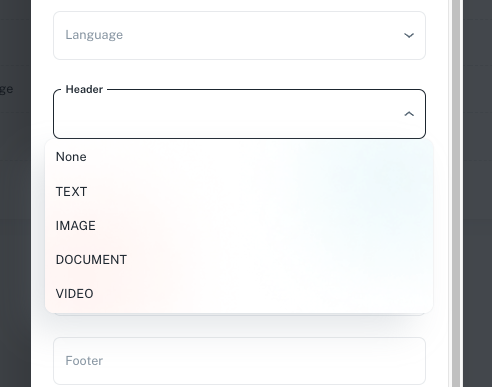
A  header allows you to select rich media, such as text, images, or videos, to enhance and lead your broadcast message.

<table><thead><tr><th width="178">Template Types</th><th width="552">Description</th></tr></thead><tbody><tr><td>No Header</td><td>A simple template without a header section.</td></tr><tr><td>Text Header</td><td>Displays bold text at the top of the message. Has a <mark style="color:red;">maximum of 60 characters including parameters.</mark></td></tr><tr><td>PDF Header</td><td>Allows you to attach a PDF file as part of the message. The <mark style="color:red;">maximum size is 15MB.</mark></td></tr><tr><td>Image Header</td><td>Supports image attachments, but the file size must be a <mark style="color:red;">maximum</mark> <mark style="color:red;">of 15MB.</mark></td></tr><tr><td>Video Header</td><td>Allows video attachments in MP4 format, with a <mark style="color:red;">maximum file size of 15MB.</mark></td></tr></tbody></table>

{% hint style="info" %}
You are required to upload an example of the header you'd like. It can be changed once your template is approved.
{% endhint %}

<figure><img src="/files/fUy9uLfOL41nntMEas6O" alt=""><figcaption></figcaption></figure>

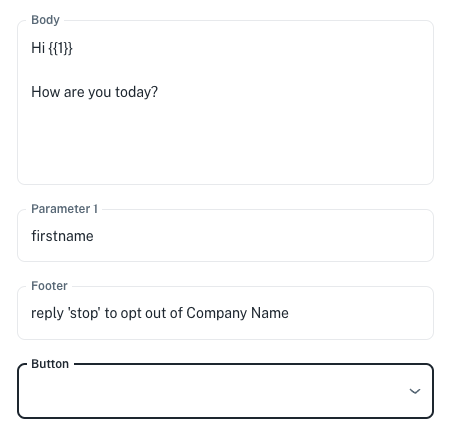
The body of your message can be customized using tags like {{1}}, which represent fields or parameters. When a parameter appears, simply enter placeholder text to show what will populate in that field.

<figure><img src="/files/VlNyWysYVHeny5sfV3Xr" alt=""><figcaption></figcaption></figure>

You can enhance your broadcast by adding customized Quick Reply or Call-to-Action buttons for faster engagement:

* **Quick Reply**: Provide up to 3 instant response options for users.
* **Hyperlink**: Link to a website for more information.
* **Phone Number**: Enable direct calls.

If you came from the **Templates API** section, here is the page link below to navigate to the next step which is **Notifications**.

{% content-ref url="/pages/dr2Row8zhVnRDBJlm59B" %}
[Notifications](/api-usage/using-the-channel360-v1.1-api/notifications.md)
{% endcontent-ref %}


---

# Agent Instructions: Querying This Documentation

If you need additional information that is not directly available in this page, you can query the documentation dynamically by asking a question.

Perform an HTTP GET request on the current page URL with the `ask` query parameter:

```
GET https://docs.channel360.co.za/channel360-guide/templates/template-creation.md?ask=<question>
```

The question should be specific, self-contained, and written in natural language.
The response will contain a direct answer to the question and relevant excerpts and sources from the documentation.

Use this mechanism when the answer is not explicitly present in the current page, you need clarification or additional context, or you want to retrieve related documentation sections.